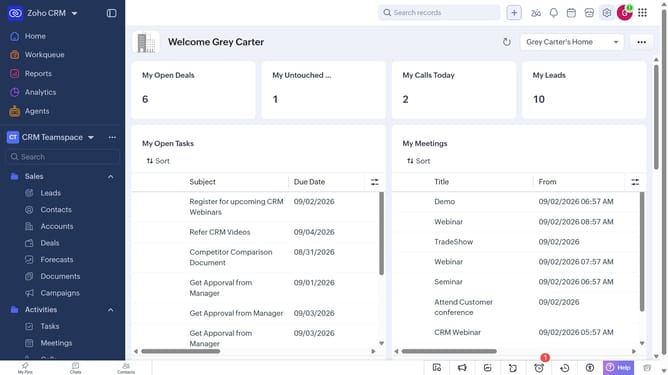
How to preview a task before printing on Zoho CRM
Here is how to preview a task before printing on zoho crm
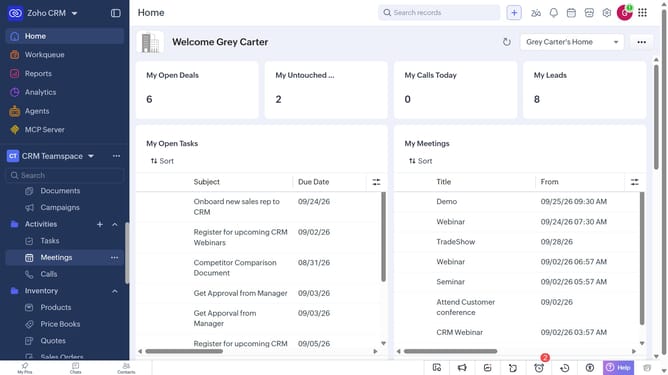
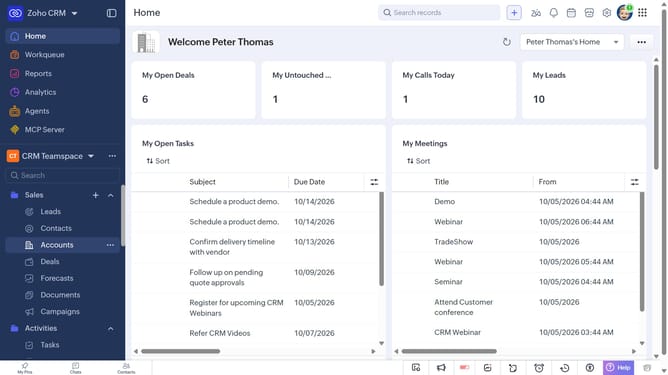
- First, click on "Tasks" in the left sidebar menu
- Next, click on the task you want to preview to open it
- After that, click on the "More Options" button
- Select "Print Preview" from the dropdown menu
- Then, review the task in the print preview
- Finally, click on the "Print" button to proceed, or close the preview to make changes
Why should you How to preview a task before printing on Zoho CRM
Zoho CRM is a dynamic platform designed to manage your customer relationships efficiently.
One standout feature is the ability to preview a task before printing. This ensures you're reviewing all essential details precisely as they will appear in print.
The benefit of this feature lies in its ability to enhance accuracy and presentation. By seeing exactly how information is formatted, you can make necessary adjustments and maintain consistency across documents.
Ultimately, this promotes professionalism while saving time and reducing the likelihood of errors in your printed materials.
Last update