How to change the owner of quotes in bulk on Zoho CRM
Here is how to change the owner of quotes in bulk on zoho crm
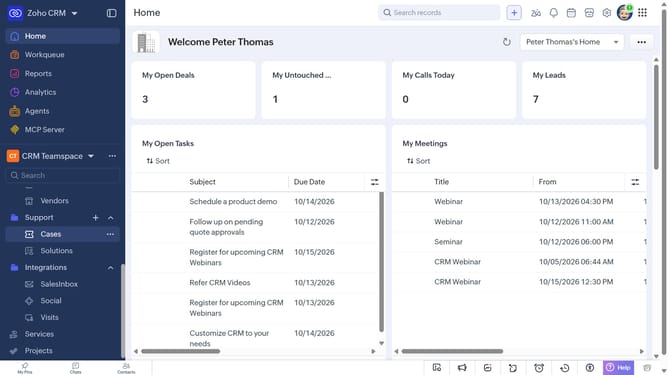
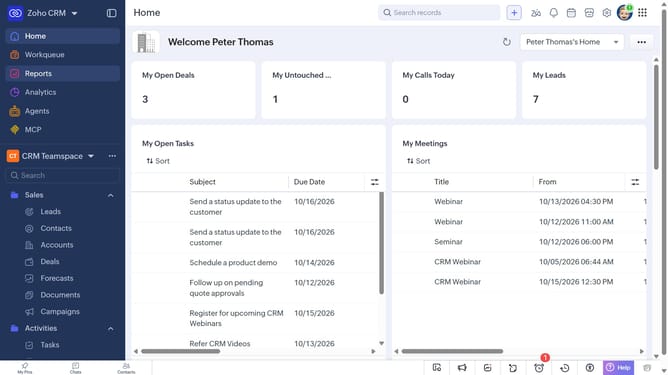
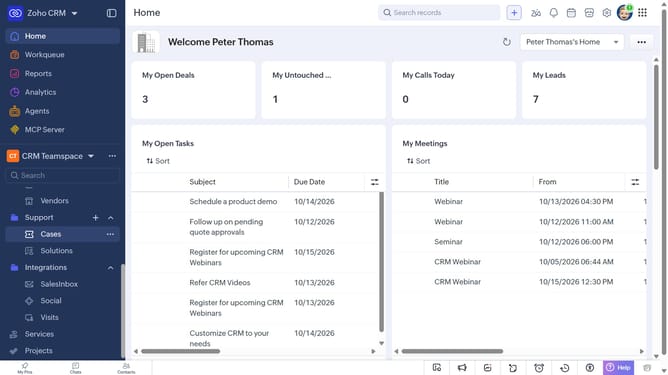
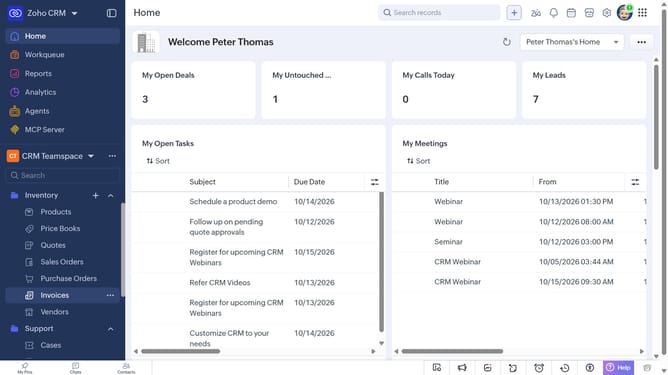
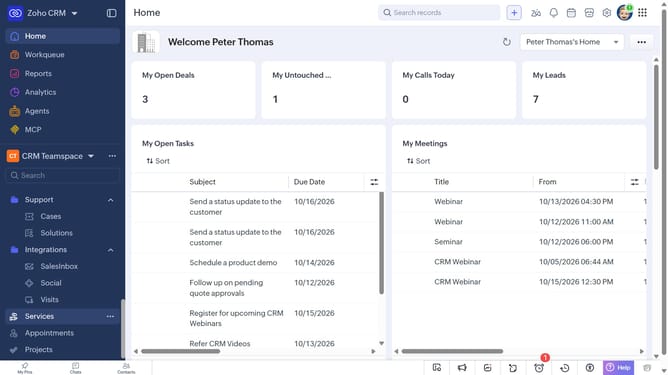
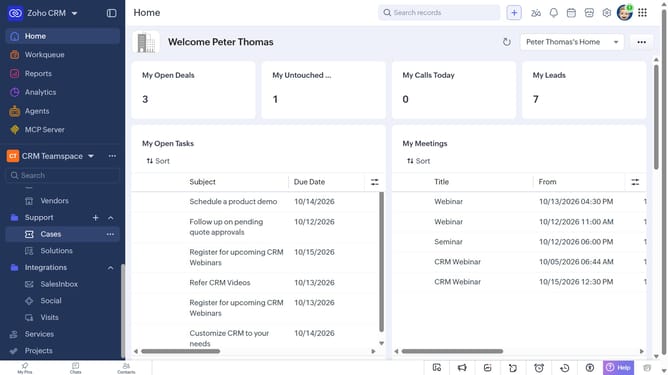
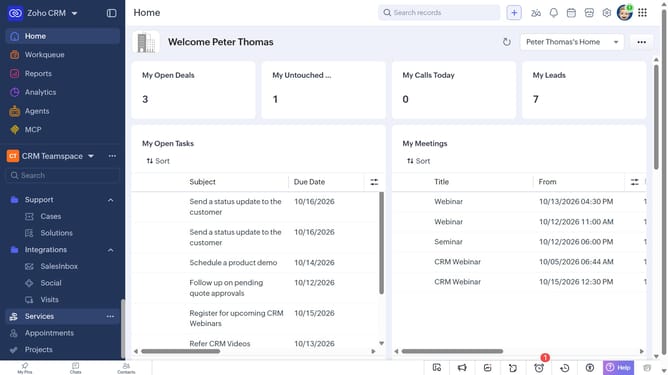
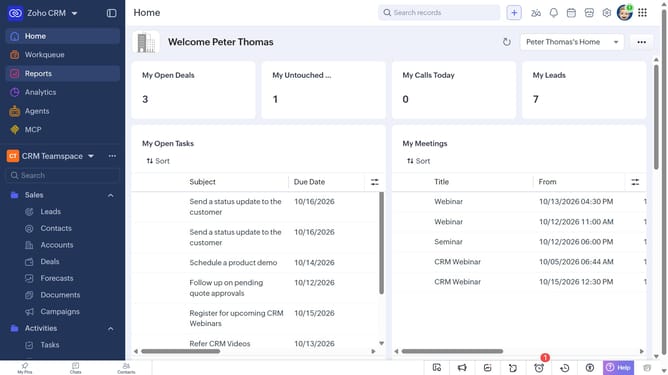
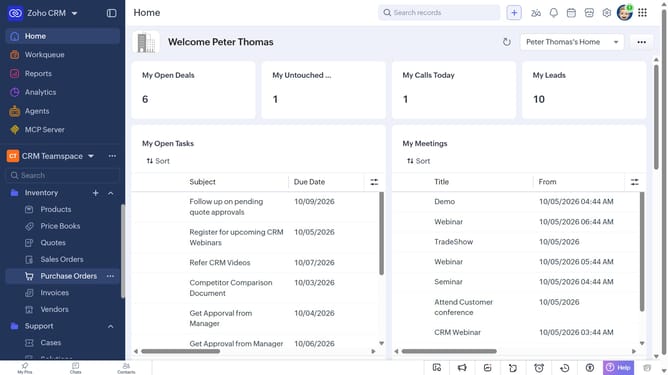
- First, click on "Quotes" under "Inventory" in the left sidebar menu
- In the List View, locate the quotes whose owner you want to change
- Next, select the checkboxes next to the quotes
- Click on the "More Options" button at the top of the list
- Select "Change Owner" from the dropdown menu
- In the "Change Owner" modal, click on the dropdown
- Then select the new owner from the dropdown menu
- Next, check "Send Email notification" to enable alerts, or leave it unchecked
- In the "Transfer Related Items" field, choose which related items to transfer
- Finally, click on the "Change Owner" button
Why should you How to change the owner of quotes in bulk on Zoho CRM
Zoho CRM, a versatile customer relationship management platform, streamlines business processes and enhances client relationships.
The ability to change the owner of quotes in bulk on Zoho CRM saves time and boosts productivity. This feature supports efficient team management by allowing quick adjustments in responsibility, which can be crucial during staff changes or reorganizations.
By enabling swift adjustments to quote ownership, businesses can ensure quotes are consistently managed, reducing delays and maintaining seamless client communications.
Last update