How to export quotes on Zoho CRM
Here is how to export quotes on zoho crm
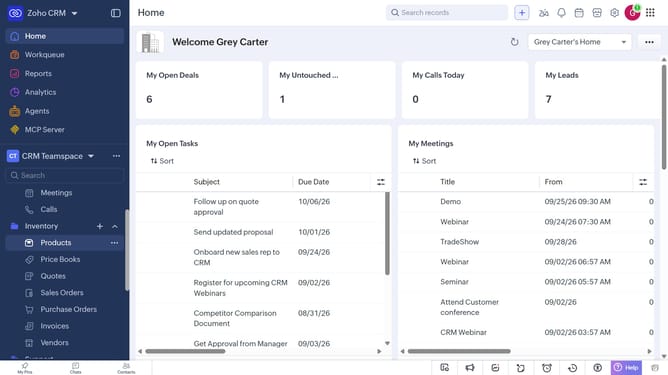
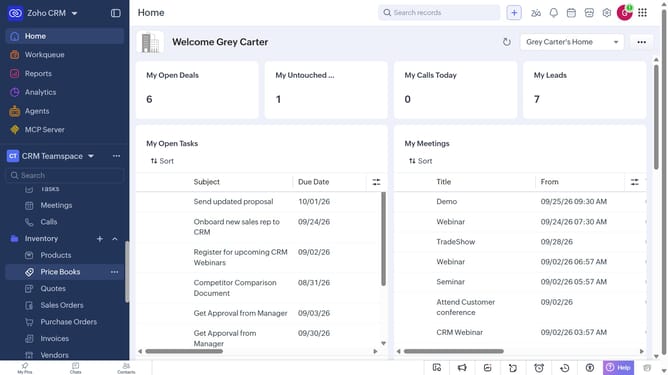
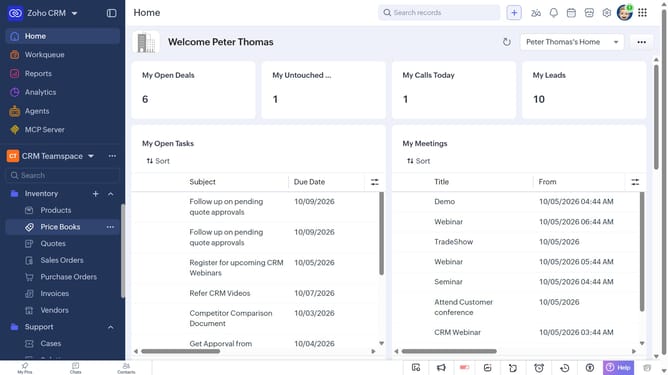
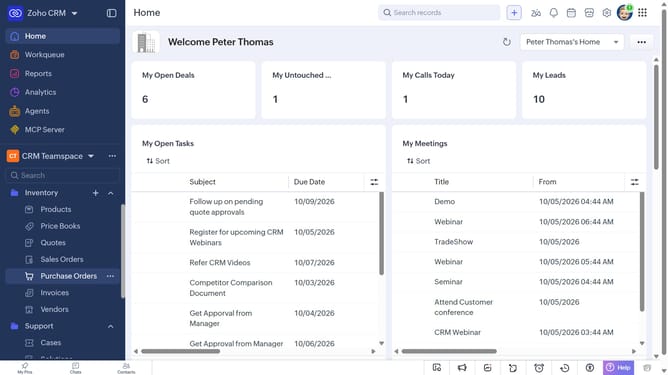
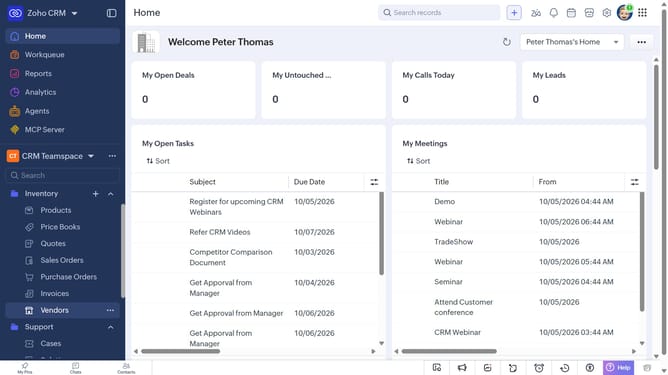
- First, click on "Quotes" under the "Inventory" section in the left sidebar menu
- Next, click on the "More Options" button next to "Create Quote"
- Select "Export Quotes" from the dropdown menu
- In the "Export Quote" dialog, click on the "Fields to Export" dropdown
- Choose whether to export all fields or only the fields from the custom view
- After that, select the file type
- Next, toggle the "Set Password" switch on or leave it off
- Finally, click on the "Export" button
Why should you How to export quotes on Zoho CRM
Zoho CRM, a powerful customer relationship management tool, is designed to streamline business operations and enhance client interactions.
The feature to export quotes on Zoho CRM allows users to efficiently manage and share crucial business information with clients or team members. This feature is invaluable for maintaining organized records and ensuring seamless communication.
Using the export functionality, businesses can effortlessly pull details of all customer inquiries, ensuring every team member is informed. It enables quick access to intricate data, improving decision-making and enhancing customer relationships.
Last update