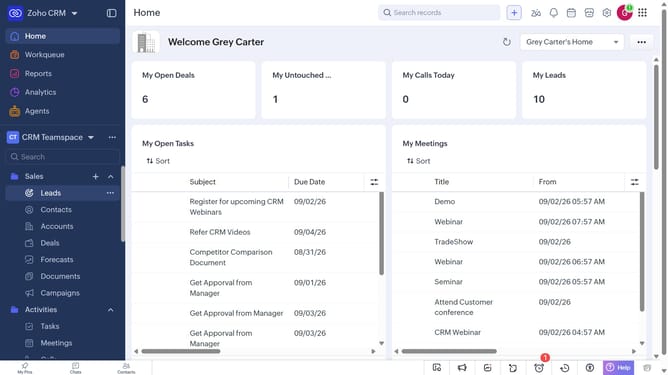
How to export meetings on Zoho CRM
Here is how to export meetings on zoho crm
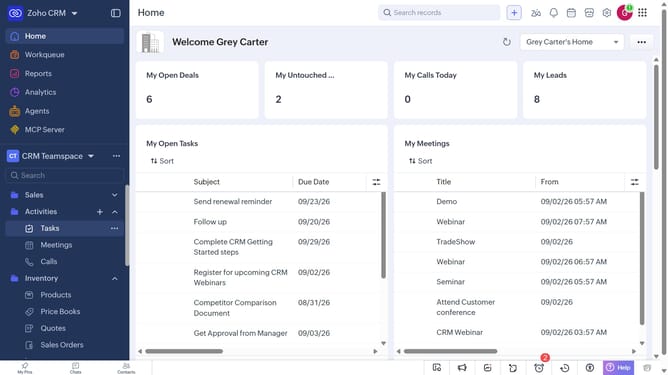
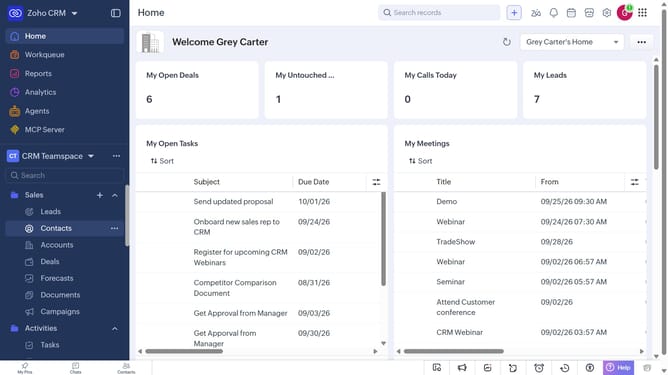
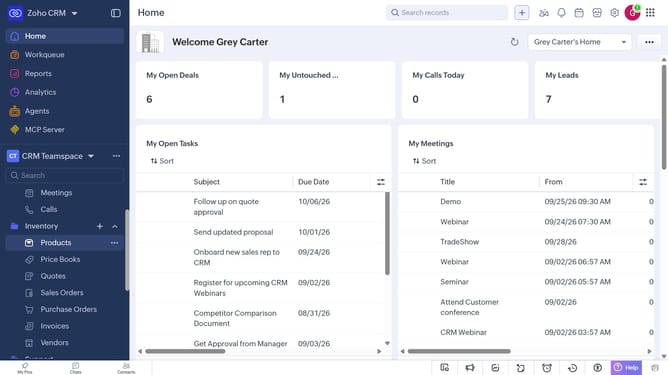
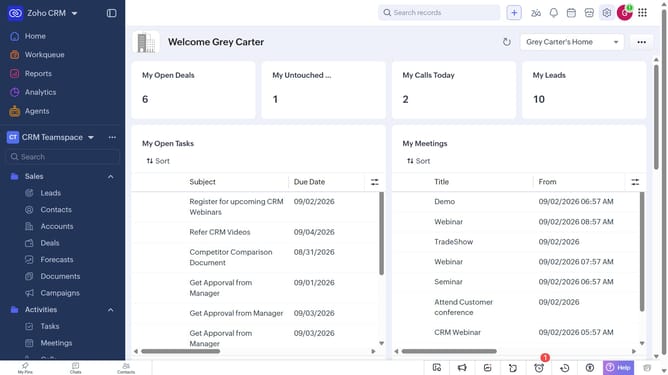
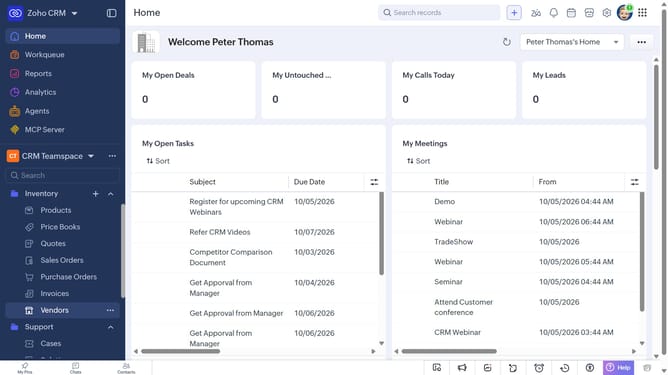
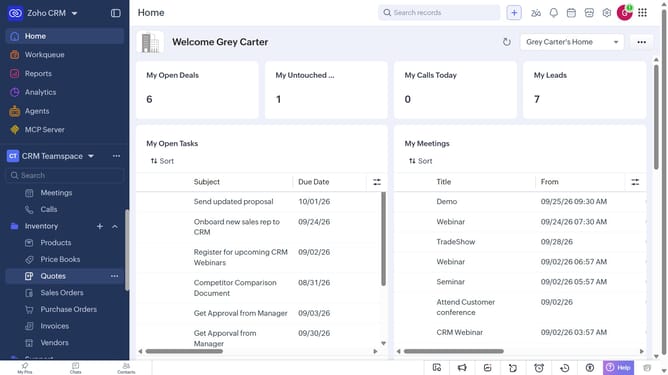
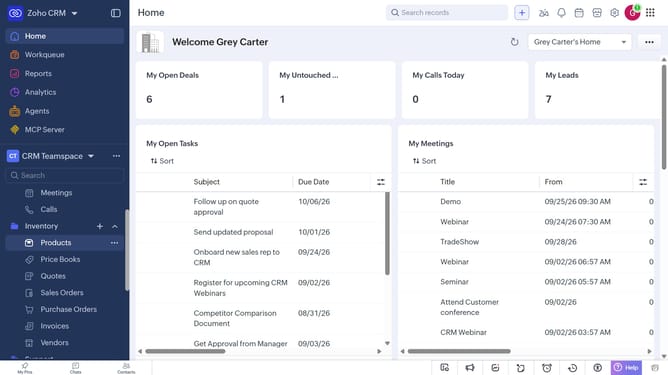
- First, click on "Meetings" in the left sidebar menu
- Next, click on the three dots icon next to "Create Meeting" button
- Select "Export Meetings" from the dropdown menu
- In the "Export Meeting" dialog, click on the "Fields to Export" dropdown
- From the dropdown menu, choose whether to export all leads or only the fields from custom view
- After that, select the desired file type
- If you select "CSV", click on the "Charset" dropdown menu and select the desired encoding
- Then, toggle the "Set Password" switch on or leave it off
- Finally click on the "Export" button
Why should you How to export meetings on Zoho CRM
Zoho CRM is a powerful tool designed to streamline business processes and foster customer relationships efficiently.
The ability to export meetings in Zoho CRM enhances productivity, allowing you to organize and share vital information effortlessly. This feature aids in maintaining a comprehensive record of all interactions with clients and colleagues, ensuring nothing gets overlooked.
By exporting meetings, teams can swiftly analyze engagement patterns and improve strategic planning, leading to clearer communication and improved outcomes. Embrace the ease of managing meeting data with Zoho CRM.
Last update