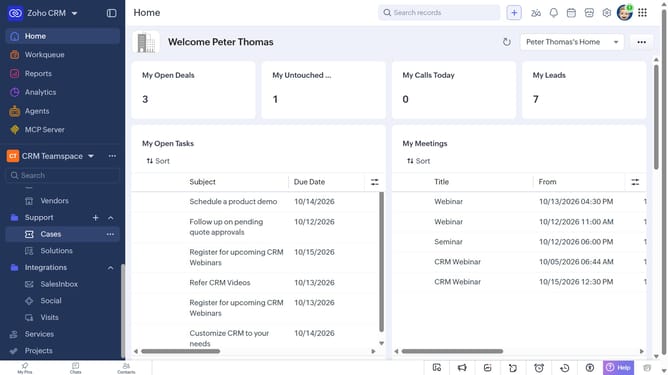
How to set the Mask Opacity for Reading Focus on Zoho CRM
Here is how to set the mask opacity for reading focus on zoho crm
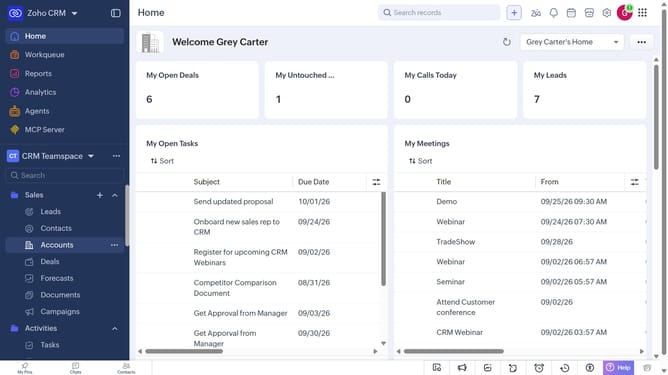
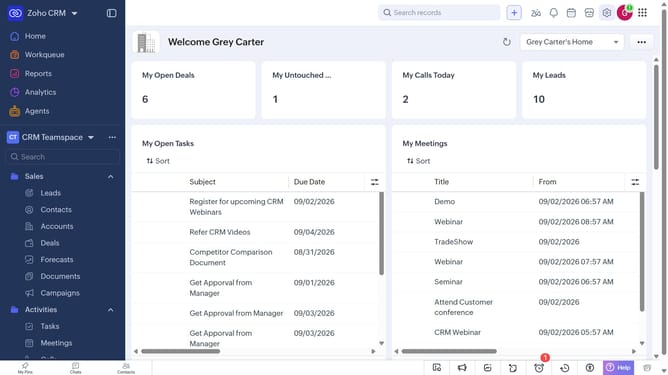
- First click on the settings icon in the top menu
- Next click on "Personal Settings" under the "General" section
- Click on the "Accessibility" tab
- After that, click on the "Interaction" tab
- Then, locate the "Reading focus" option
- Click the toggle switch to enable this option
- Then, locate the "Mask Opacity" control
- Finally, adjust the "Mask Opacity" control to your preferred level
Why should you How to set the Mask Opacity for Reading Focus on Zoho CRM
Zoho CRM is a comprehensive customer relationship management solution designed to streamline business interactions and enhance customer experiences.
One of its standout features is the ability to set Mask Opacity for Reading Focus. This feature allows users to adjust the opacity of text overlays, making it easier to concentrate on specific information.
Utilizing the Mask Opacity feature can significantly enhance reading efficiency and reduce screen fatigue, allowing for a more focused and productive workflow.
Ultimately, adjusting Mask Opacity ensures vital information stands out, facilitating clearer communication and decision-making within teams.
Last update