How to set text-to-speech message in IVR in Aircall
Here is how to set text-to-speech message in ivr in aircall
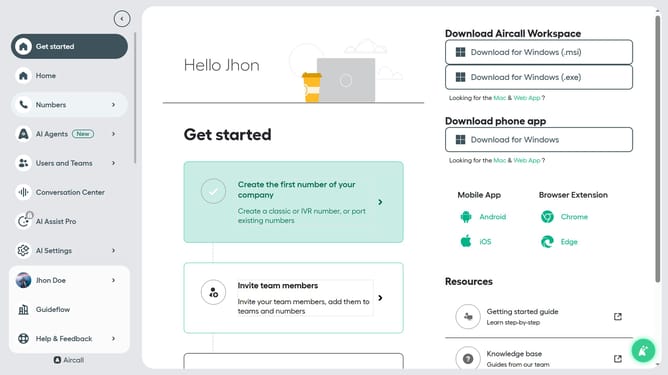
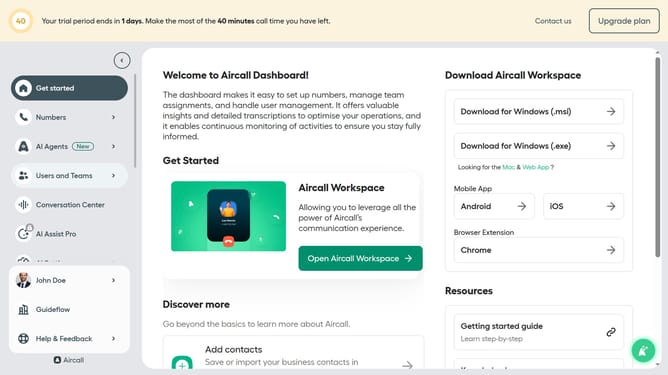
- First click on "Numbers" item in the left sidebar
- Then click on the "Numbers" tab
- Next click on the name of the number you want to manage from the table
- Then click on the "Edit" button
- Then click on the IVR block
- Then click on the "Retry management" section
- Then click on the message text area and edit it
- Finally click on the "Publish" button
Why should you set text-to-speech message in IVR in Aircall
Aircall is a cloud-based phone system designed to streamline communication for businesses.
Setting a text-to-speech message in IVR on Aircall enhances the caller experience by delivering clear and professional messages. This feature allows businesses to customize automated messages that guide customers through menu options efficiently.
Utilizing text-to-speech ensures consistency and clarity, which is vital for maintaining a professional image and reducing misunderstandings. By automating responses, businesses can handle more calls effectively, ensuring that customer queries are addressed promptly.
Last update