How to set text to speech voice in a call flow in Aircall
Here is how to set text to speech voice in a call flow in aircall
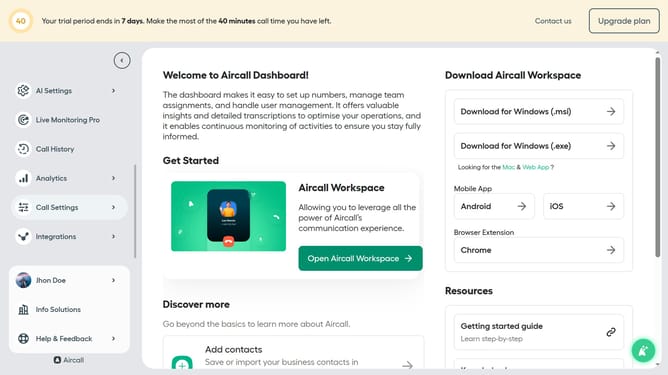
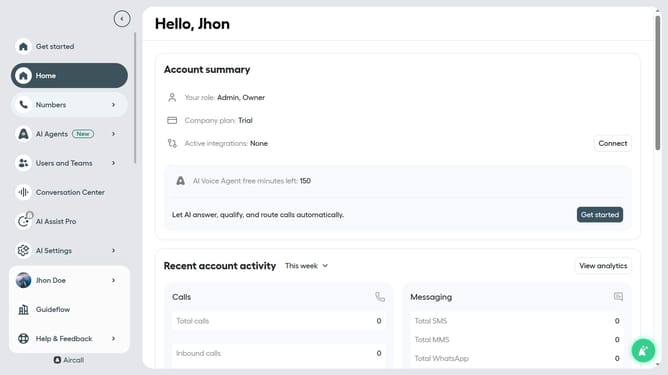
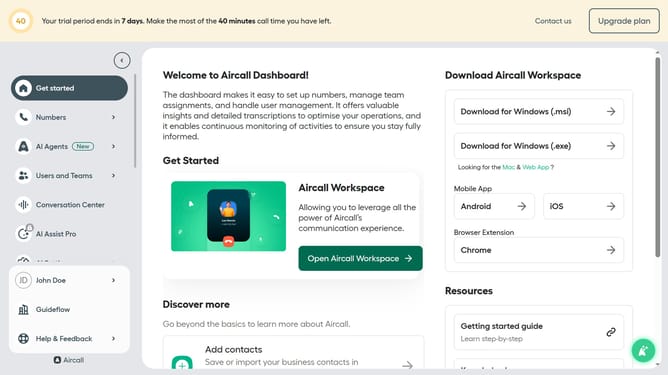
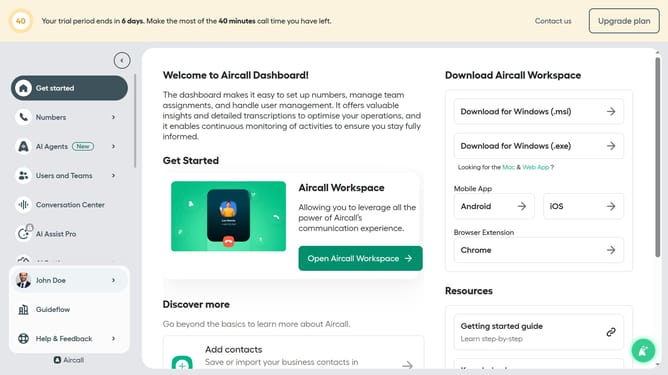
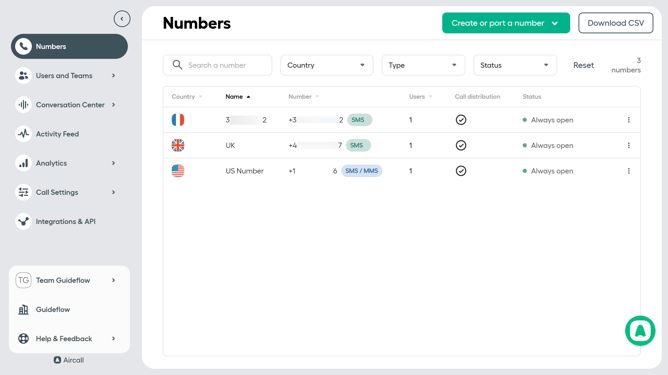
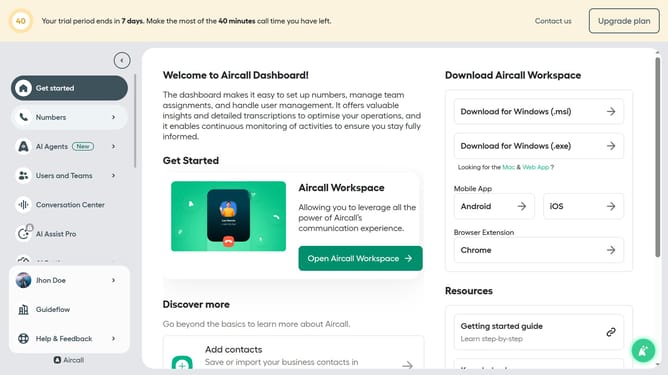
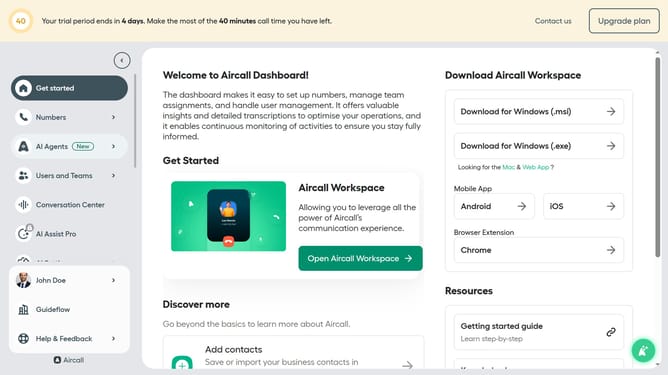
- First click on "Numbers" in the left sidebar menu
- Then click on the "Numbers" tab
- Next click on the name of the number you want to manage from the table
- Then click on the "Edit" button
- In the Smartflow Editor, click on the audio message
- Then click on the "Voice" dropdown menu
- Next, select from the voice options
- Finally click on the "Publish" button
Why should you set text to speech voice in a call flow in Aircall
Aircall is a cloud-based phone system designed to simplify communication for businesses.
The text to speech feature in Aircall's call flow allows you to seamlessly convert written script into clear, natural-sounding auditory messages.
Setting a text to speech voice enhances caller experience by ensuring consistent, professional communication every time.
This feature saves time, eliminates the need for voice actors, and allows instant modification of messages, making business communications efficient and customizable.
Last update