How to set text-to-speech message for retry in input IVR in Aircall
Here is how to set text-to-speech message for retry in input ivr in aircall
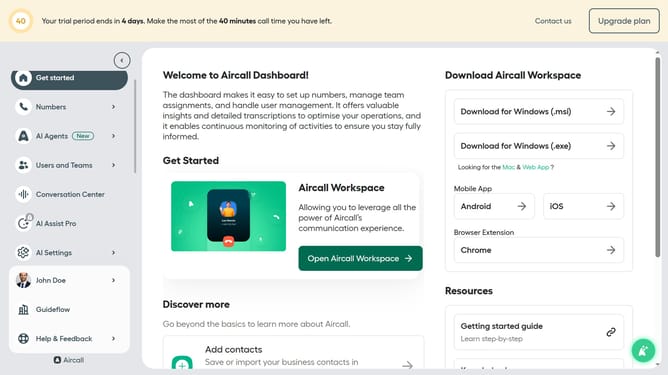
- First, click on the "Numbers" item in the left sidebar
- Then, click on the "Numbers" tab in the main content area
- Next, click on the "Customer Service" row in the table
- After that, click on the "Edit" button
- Then, click on the "Input IVR" node in the flowchart
- Next, click on the "Retry management" section
- Then, click on the text input field for the retry message and edit it
- Finally, click on the "Publish" button in the header
Why should you set text-to-speech message for retry in input IVR in Aircall
Aircall transforms business communications by providing a cloud-based phone system engineered for seamless global collaboration.
Setting text-to-speech messages for retries in input IVR within Aircall enhanced customer experience by offering clear guidance when initial inputs are unsuccessful.
This feature ensures that callers receive immediate feedback and assistance, reducing frustration and enhancing efficiency.
Utilizing this functionality fosters a professional image and streamlines the call handling process by enabling callers to swiftly and efficiently navigate call options.
Last update