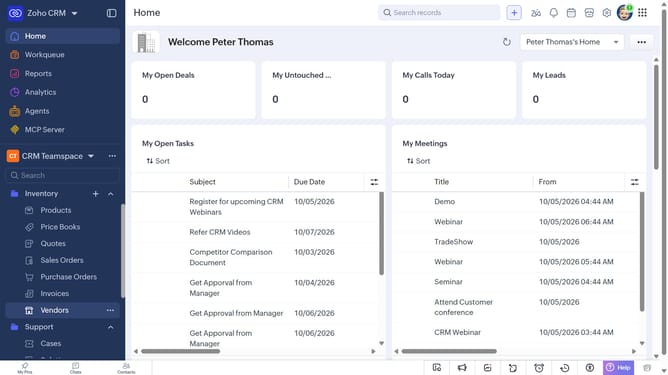
How to set text spacing to Widen on Zoho CRM
Here is how to set text spacing to widen on zoho crm
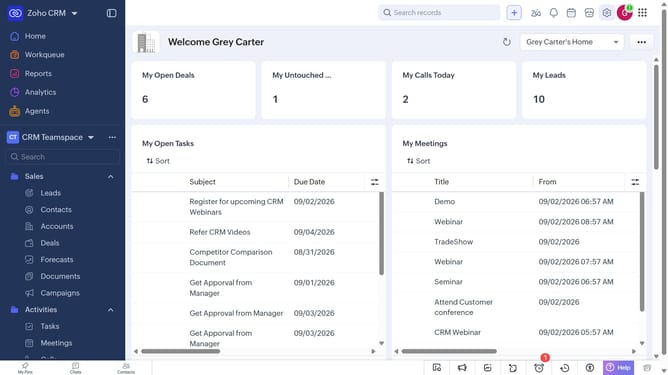
- First click on the settings icon in the top menu
- Next click on "Personal Settings" under the "General" section
- Click on the "Accessibility" tab
- After that, click on the "Vision" tab
- Then, locate the "Spacing" option
- Next, click on the dropdown menu
- Finally, select "Widen" from the dropdown
Why should you How to set text spacing to Widen on Zoho CRM
Zoho, a comprehensive cloud-based software suite, empowers businesses with robust productivity and collaboration tools.
Adjusting text spacing to Widen in Zoho CRM ensures enhanced readability, which can significantly improve user engagement.
This feature not only makes text easier to digest, especially for long entries, but also allows users to customize their workspace for optimal comfort and productivity.
Implementing finely-tuned text spacing contributes to a streamlined workflow, supporting seamless navigation through data, crucial for sales and customer relationship management.
Last update