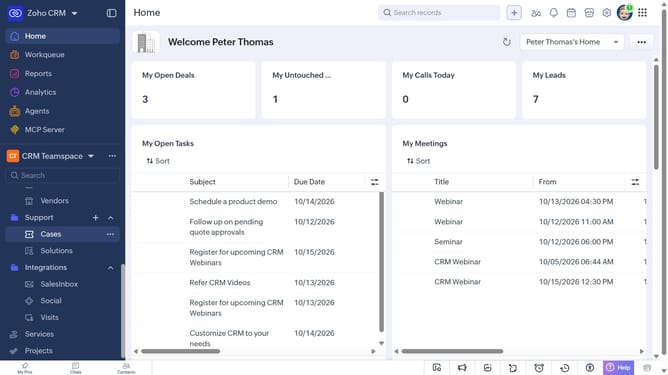
How to change the description of a price book on Zoho CRM
Here is how to change the description of a price book on zoho crm
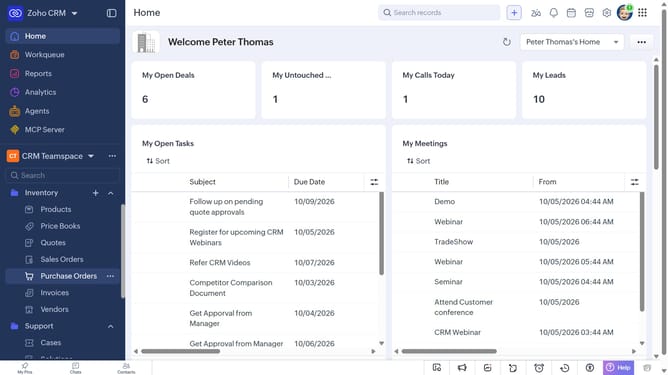
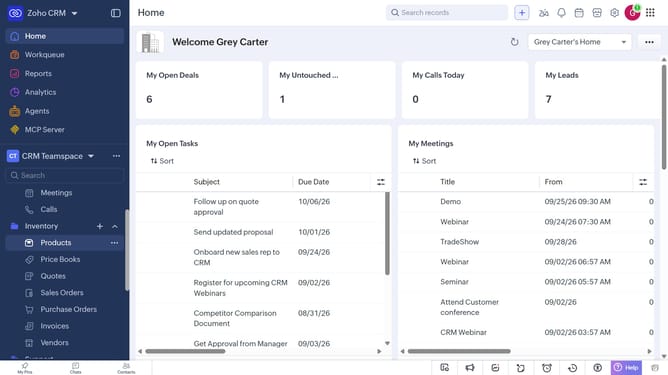
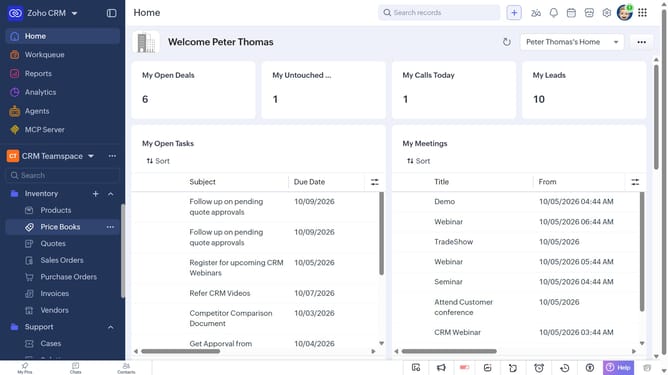
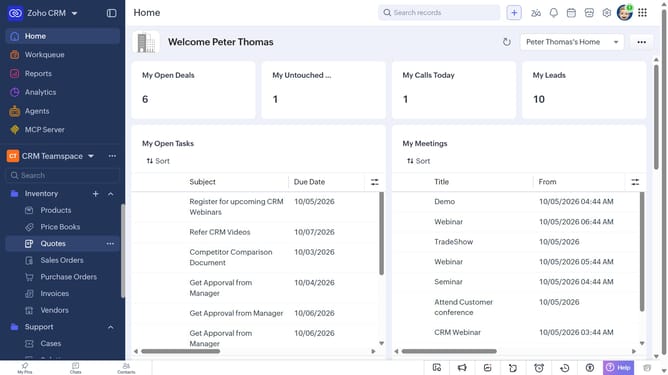
- First, click on "Price Books" under the "Inventory" section in the left sidebar menu
- Next, click on the price book you want to update
- After that, click on the "Edit" button
- Locate the "Description" field
- Then, enter the new description
- Finally, click on the "Save" button
Why should you How to change the description of a price book on Zoho CRM
Zoho CRM is a dynamic platform designed to streamline customer relationship management for businesses of all sizes.
Changing the description of a price book in Zoho CRM allows you to keep your information relevant and organized, ensuring that all stakeholders understand the context and specifics of your pricing strategies.
By updating the price book description, you can align it with current business goals, making it easier for your sales team to use the most accurate data. This leads to improved decision-making, enhances sales efficiency, and maintains consistent communication across departments. Embracing this feature means fostering a well-informed, cohesive team while supporting your company's growth and adaptability.
Last update