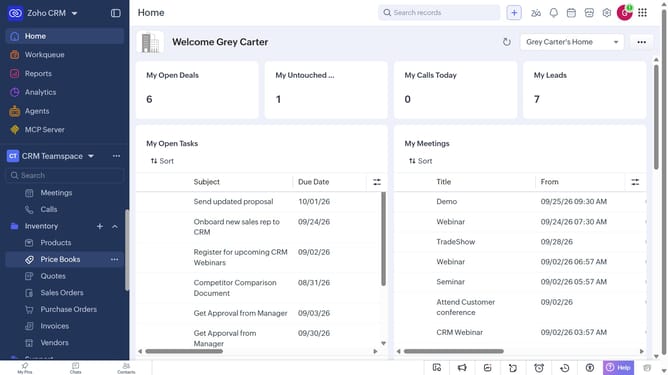
How to print price book details on Zoho CRM
Here is how to print price book details on zoho crm
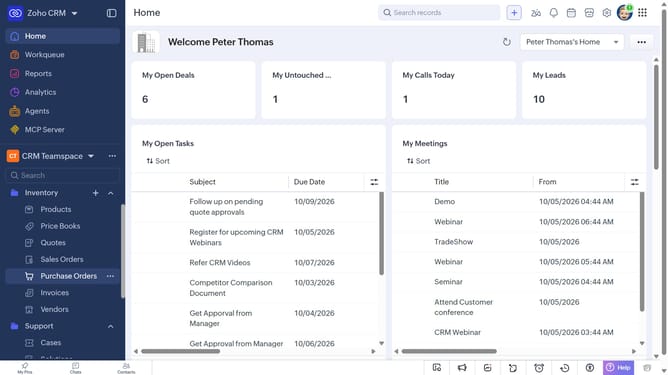
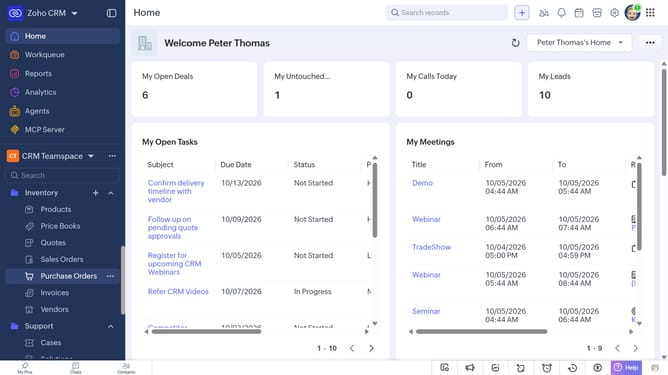
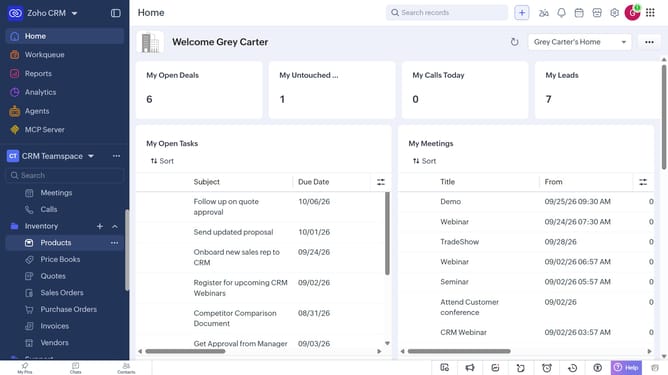
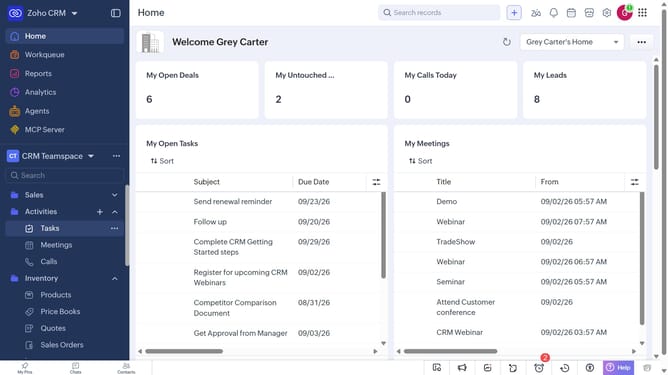
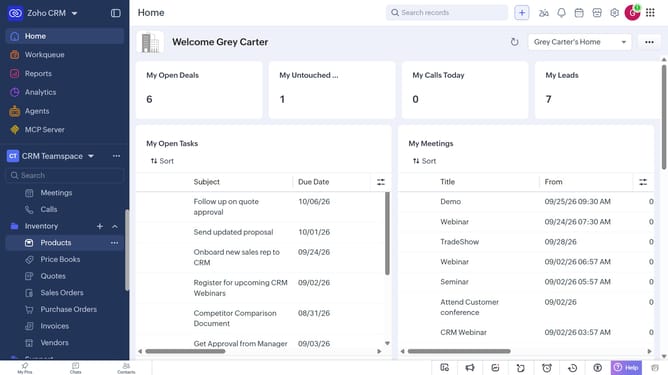
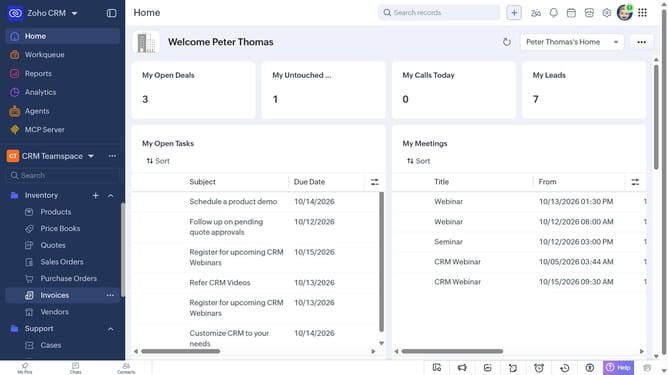
- First, click on "Price Books" under the "Inventory" section in the left sidebar menu
- Next, click on the price book you want to print
- After that, click on the "More Options" menu
- Select "Print Preview" from the dropdown menu
- Then, review the price book details in the print preview
- Finally, click on the "Print" button to proceed
Why should you How to print price book details on Zoho CRM
Zoho CRM is an advanced platform designed to streamline business processes and enhance customer relationships.
Printing price book details directly from Zoho CRM offers a seamless way to keep track of your pricing strategies. This feature is essential for businesses aiming to provide their sales teams with updated and accurate pricing information.
Having physical copies of price books can aid in sales pitches and ensure consistency across departments, enhancing communication and decision-making.
By utilizing this feature, organizations can efficiently align their sales and marketing efforts, fostering growth and customer satisfaction.
Last update