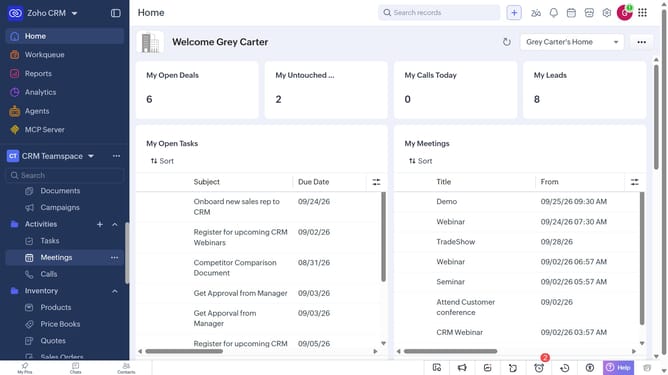
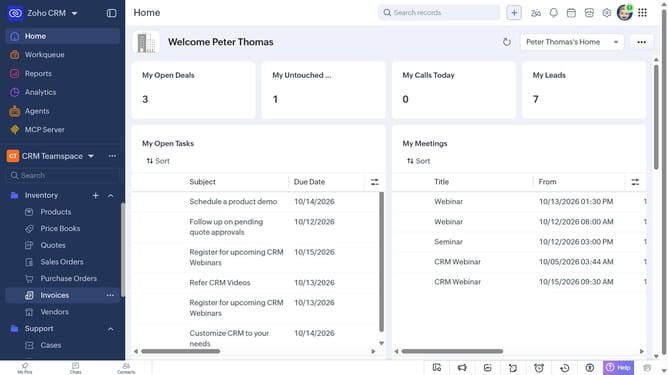
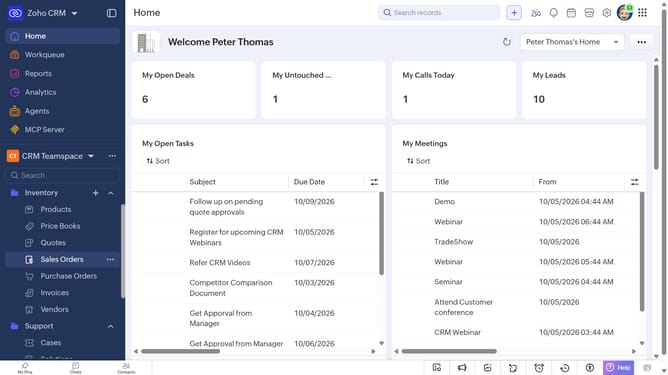
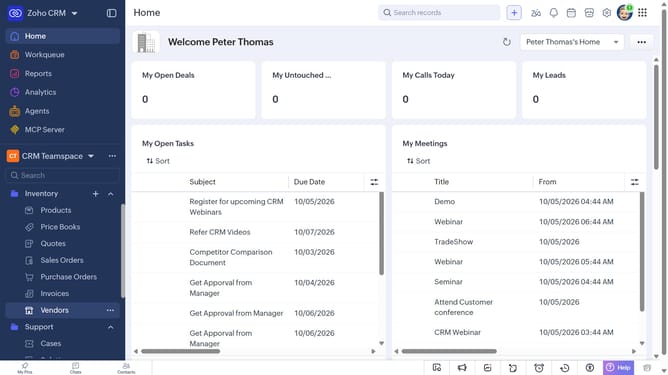
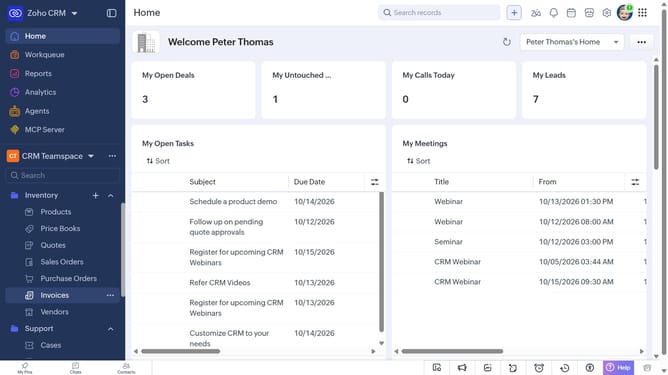
How to change the theme color to Default on Zoho CRM
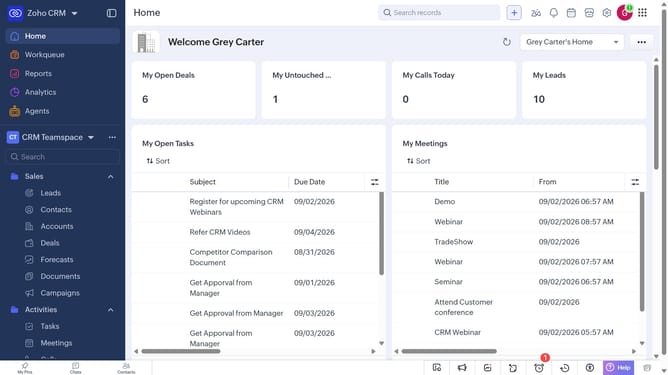
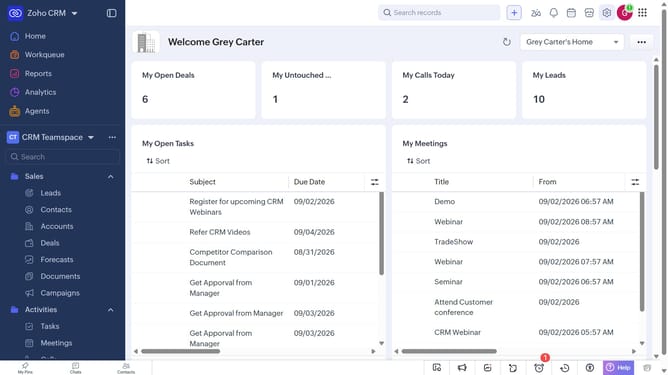
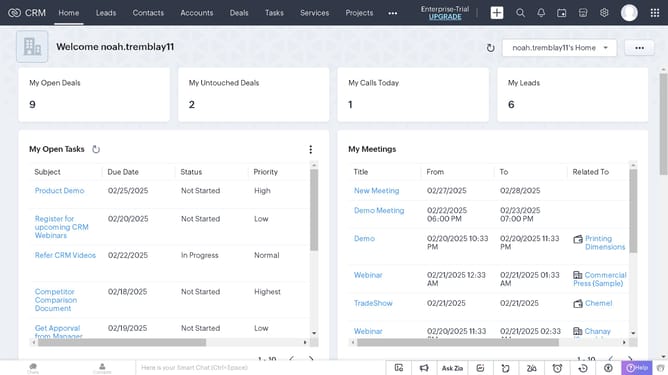
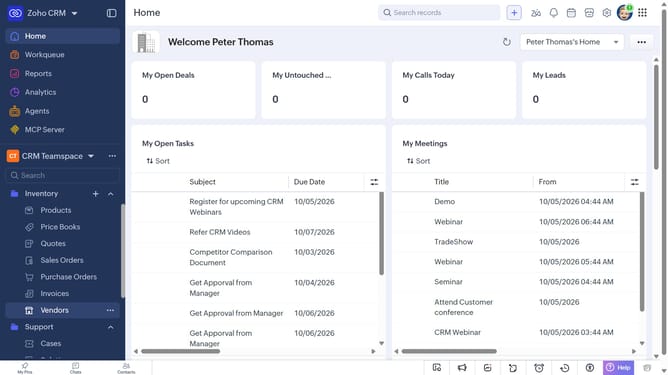
Here is how to change the theme color to default on zoho crm
- First click on your avatar profile in the top right corner
- Next locate the "Themes" section
- Then, select your preferred theme option (Dark or Lite)
- Finally, select "Default" from the theme color options
Why should you How to change the theme color to Default on Zoho CRM
Zoho CRM is a powerful tool designed to streamline customer relationship management for businesses of all sizes.
Changing the theme color to Default in Zoho CRM enhances user experience by providing a clean, standardized look that aids in focus and clarity. It helps maintain consistency across the platform, ensuring all team members have a unified visual interface. This makes navigation intuitive and reduces distractions, ultimately improving productivity.
Adopting the Default theme can be particularly beneficial for new users or teams looking to maintain simplicity. Embracing this option can lead to a more cohesive and efficient workflow, allowing users to fully harness Zoho CRM's robust capabilities.
Last update