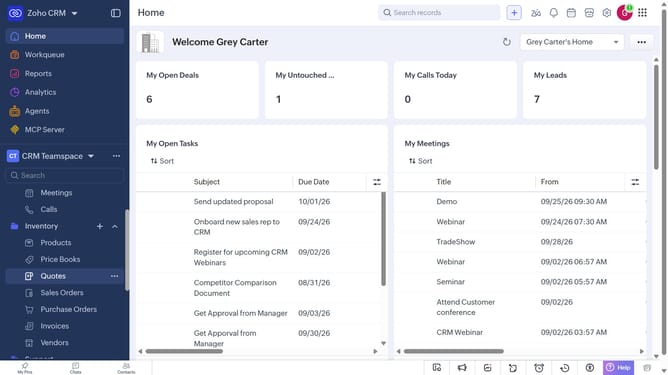
How to set text spacing to Normal on Zoho CRM
Here is how to set text spacing to normal on zoho crm
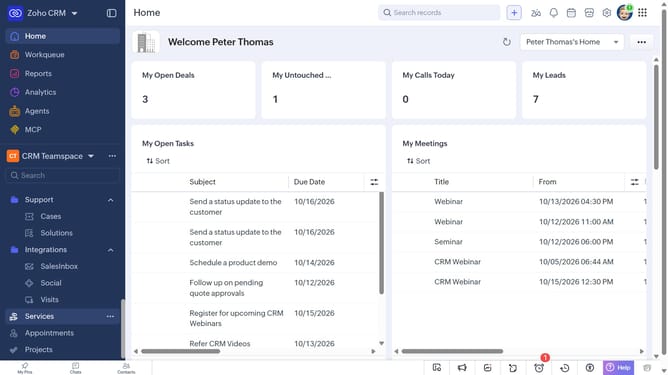
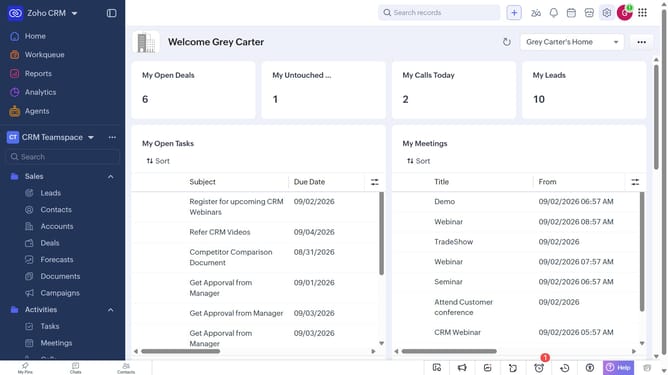
- First click on the settings icon in the top menu
- Next click on "Personal Settings" under the "General" section
- Click on the "Accessibility" tab
- After that, click on the "Vision" tab
- Then, locate the "Spacing" option
- Next, click on the dropdown menu
- Finally, select "Normal" from the dropdown
Why should you How to set text spacing to Normal on Zoho CRM
Zoho CRM empowers businesses by transforming customer relationship management into seamless operations.
Setting text spacing to Normal on Zoho CRM enhances readability, ensuring each piece of information is clear and accessible.
This feature minimizes visual distraction, making your CRM more efficient and user-friendly.
By adopting standard text spacing, communication within your team becomes more coherent, leading to improved collaboration and better decision-making.
Last update