How to export price books as a CSV file on Zoho CRM
Here is how to export price books as a csv file on zoho crm
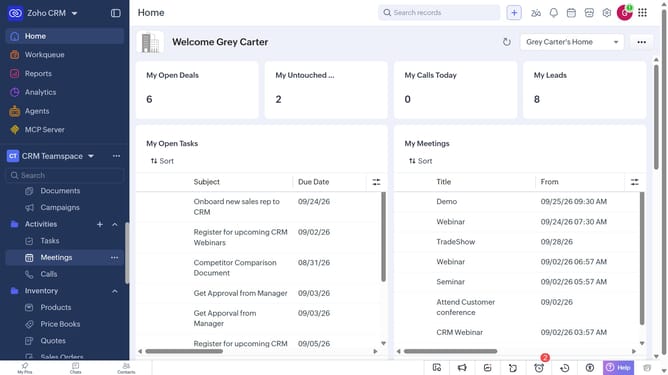
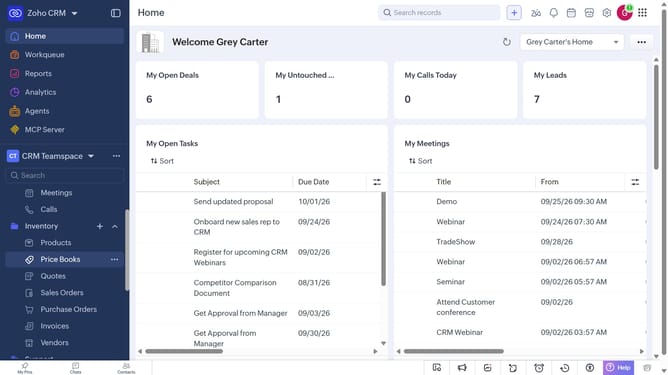
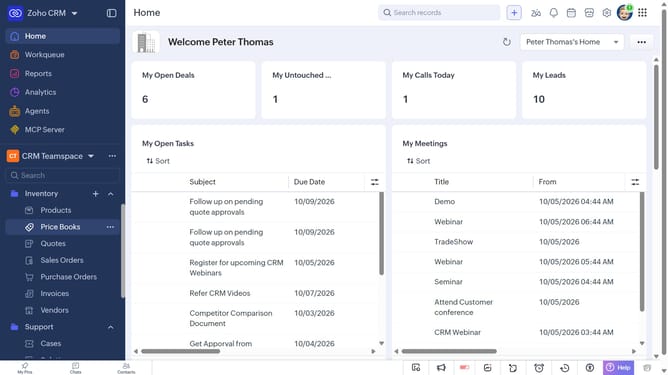
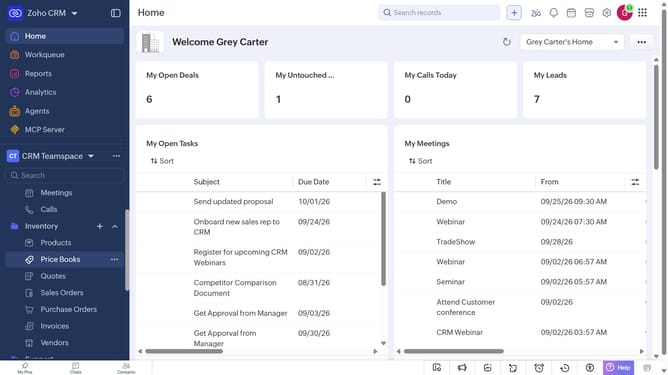
- First, click on "Price Books" under the "Inventory" section in the left sidebar menu
- Next, click on the "More Options" button next to "Price Book"
- Select "Export Price Books" from the dropdown menu
- In the "Export Price Book" dialog, click on the "Fields to Export" dropdown
- Choose whether to export all fields or only the fields from the custom view
- After that, select "CSV" as the file type
- Next, click on the "Charset" dropdown and and select the desired encoding
- Then, toggle the "Set Password" switch on or leave it off
- Finally click on the "Export" button
Why should you How to export price books as a CSV file on Zoho CRM
Zoho CRM is a comprehensive platform designed to streamline business processes and enhance customer relationships.
Exporting price books as a CSV file in Zoho CRM offers a streamlined method to manage and analyze your pricing data. This feature allows you to easily transfer your price lists into a universally compatible format, facilitating data manipulation and sharing.
Using this feature, you can effortlessly maintain up-to-date pricing information, optimize sales strategies, and ensure consistent documentation across your business operations. It supports decision-making by providing quick access to organized data.
Last update