How to add tags to price books in bulk on Zoho CRM
Here is how to add tags to price books in bulk on zoho crm
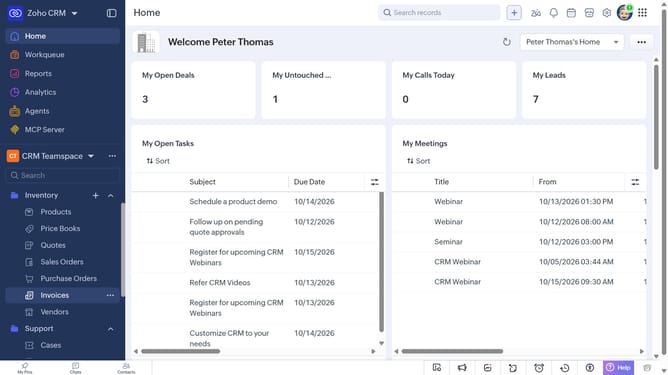
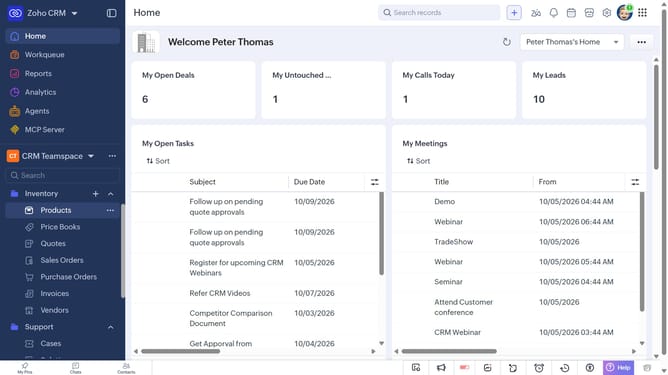
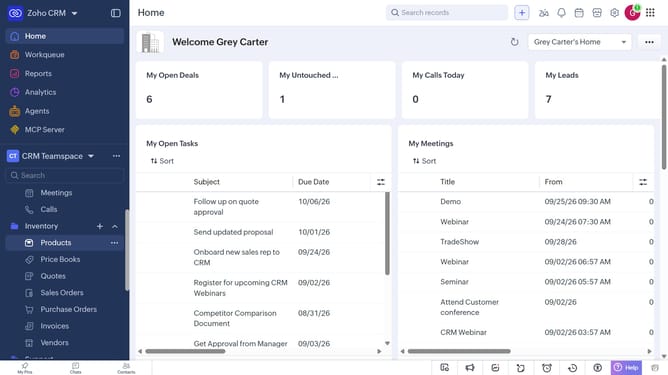
- First, click on "Price Books" under "Inventory" in the left sidebar menu
- Locate the price books you want to add tags to
- Next, select the checkboxes next to each record
- Click on the "Tags" button at the top of the list
- Select "Add Tags" from the dropdown menu
- Then, click on the "Enter Tags" field
- Next, choose from existing tags
- Alternatively, enter the tag you want to add and press "Enter"
- Next, check or uncheck the "Overwrite any existing Tags" option
- Finally, click on the "Save" button
Why should you How to add tags to price books in bulk on Zoho CRM
Zoho CRM is a powerful platform designed to streamline customer relationship management, helping businesses grow efficiently.
Adding tags to price books in bulk on Zoho CRM simplifies organization, ensuring that all your pricing data is easily accessible and categorized. This feature enhances your ability to manage and filter extensive pricing information effortlessly.
Utilizing bulk tagging saves time and reduces manual entry errors, allowing teams to focus on strategic tasks. This organized approach facilitates better decision-making and supports a more agile response to market changes.
Last update