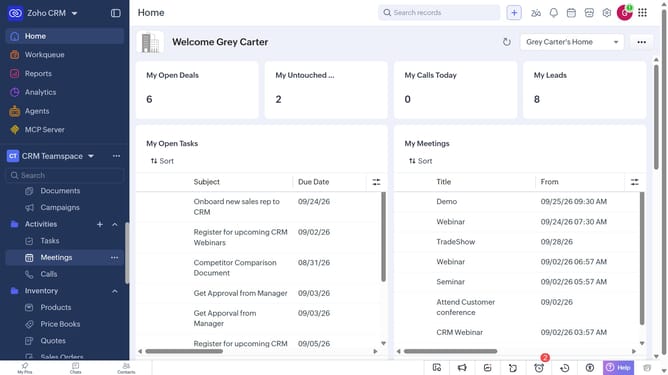
How to change the name of a price book on Zoho CRM
Here is how to change the name of a price book on zoho crm
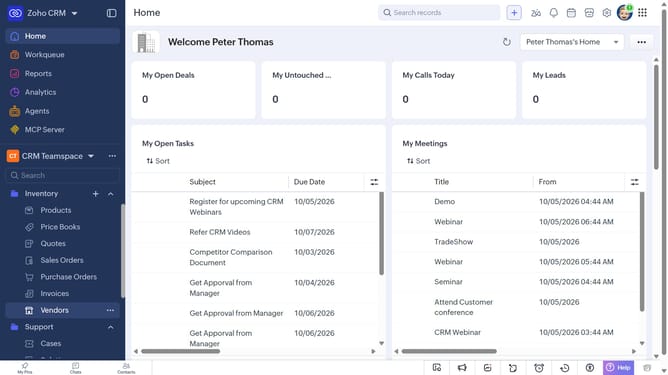
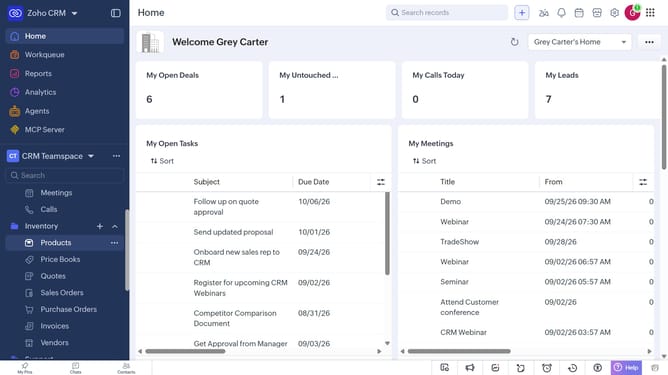
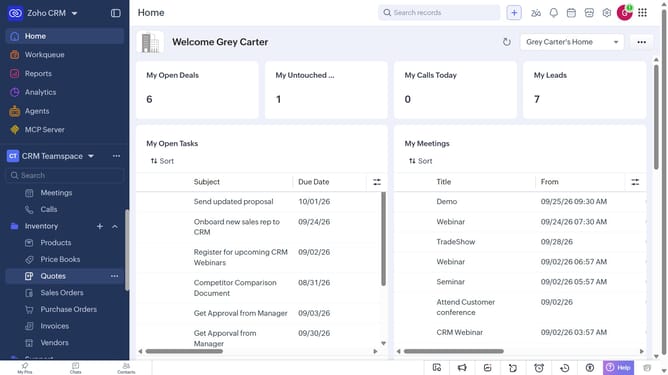
- First, click on "Price Books" under the "Inventory" section in the left sidebar menu
- Next, click on the price book you want to rename
- After that, click on the "Edit" button
- Then, click on the "Price Book Name" field and enter the new name
- Finally, click on the "Save" button
Why should you How to change the name of a price book on Zoho CRM
Zoho CRM is a robust tool designed to streamline customer relationship management for businesses of all sizes.
One useful feature in Zoho CRM is the ability to change the name of a price book, enabling businesses to keep their sales information organized and up to date. This flexibility allows for easy modifications, ensuring that the naming conventions align with evolving business strategies or specific campaign needs.
By renaming a price book, companies can enhance clarity and internal communication. This helps teams quickly identify the right pricing structures, thus improving efficiency and making the sales process smoother and more effective.
Last update