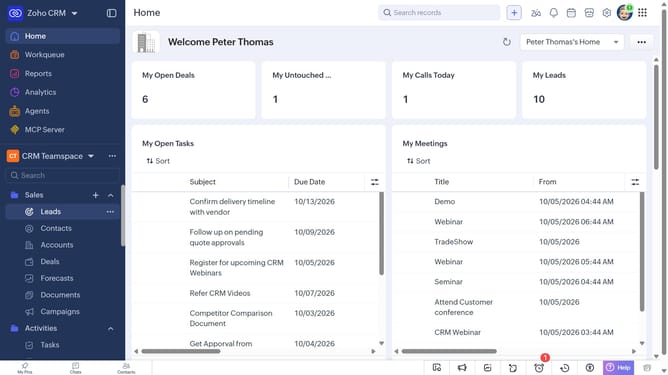
How to change the owner of a vendor on Zoho CRM
Here is how to change the owner of a vendor on zoho crm
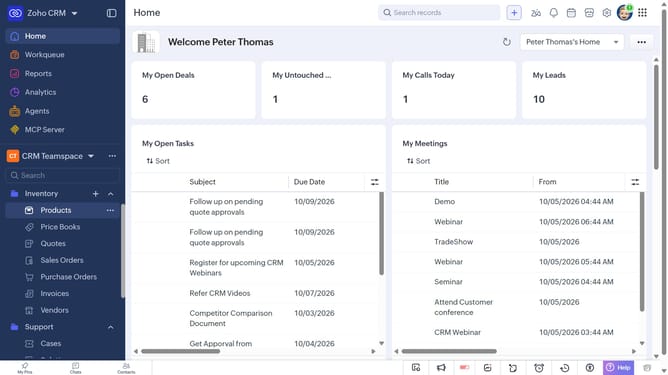
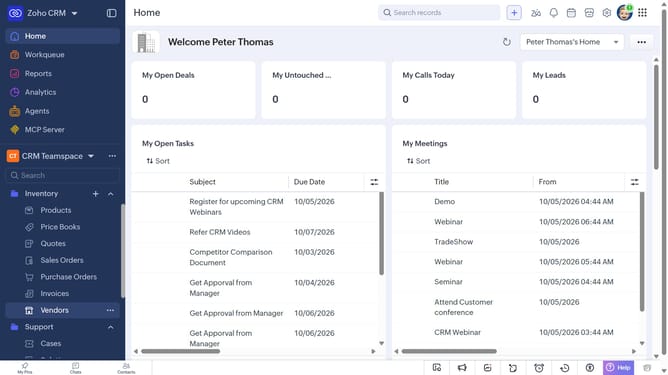
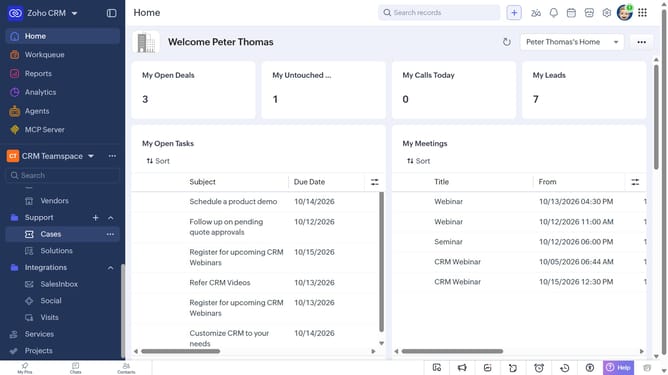
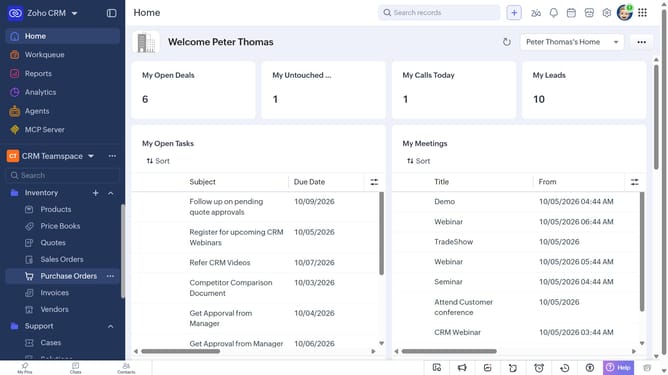
- First, click on "Vendors" under "Inventory" in the left sidebar menu
- Next, locate the vendor whose owner you want to change
- Click on the "More options" button next to the vendor
- Select "Change Owner" from the dropdown menu
- In the "Change Owner" modal, click on the dropdown
- Then select the new owner from the dropdown menu
- Next, check "Send Email notification" to enable alerts, or leave it unchecked
- Finally, click on the "Change Owner" button
Why should you How to change the owner of a vendor on Zoho CRM
Zoho is a comprehensive, cloud-based software suite designed to streamline and enhance business operations seamlessly.
Changing the owner of a vendor in Zoho CRM is a powerful feature that ensures your business processes remain organized and efficient. This capability allows you to reassign vendor responsibilities quickly, adapting to changes in team roles or workloads.
By updating the vendor owner, you ensure continuity and accountability, as the new owner receives all relevant information and notifications. This feature enhances collaboration, maintains data integrity, and aligns with dynamic business needs.
Last update