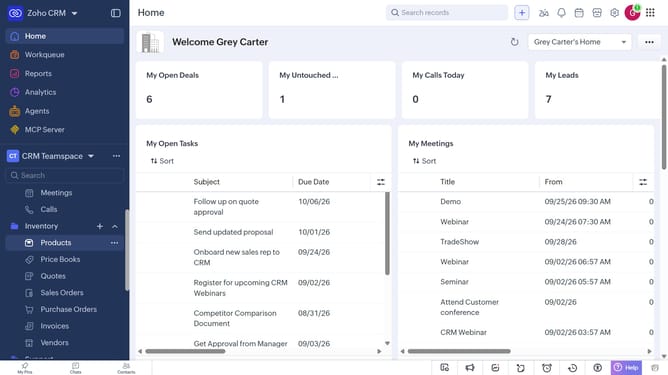
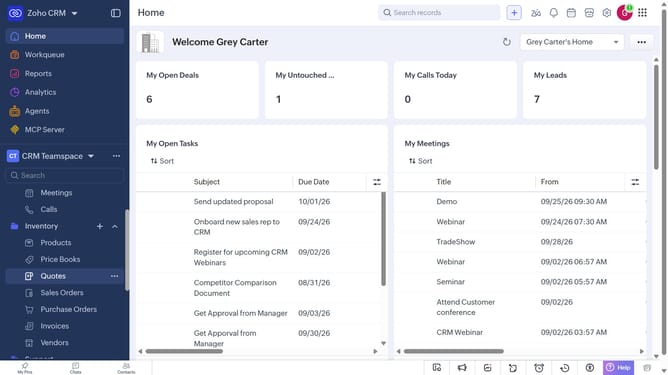
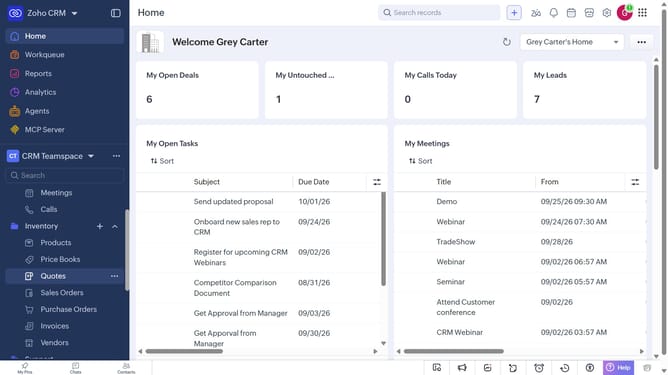
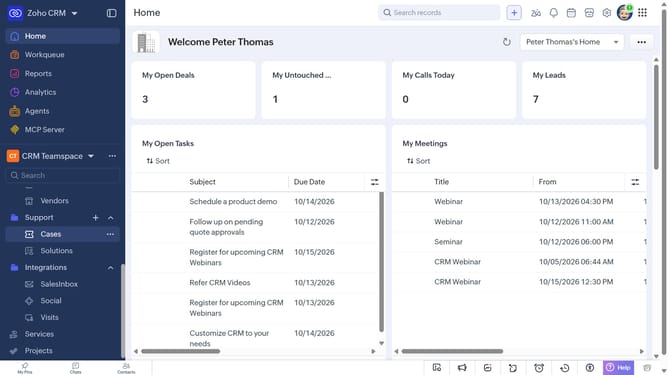
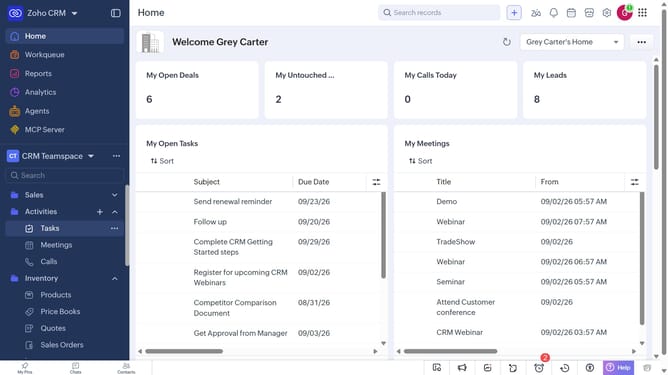
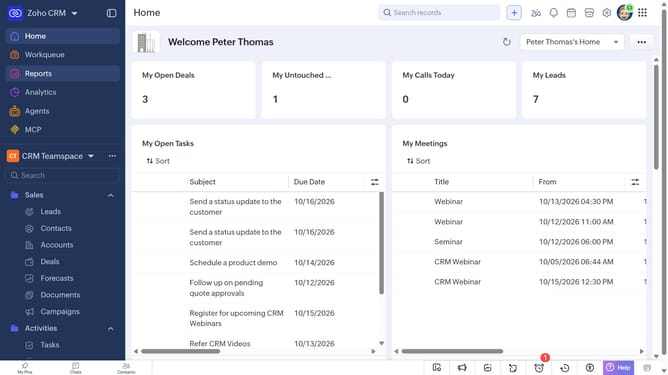
How to set text spacing to Condensed on Zoho CRM
Here is how to set text spacing to condensed on zoho crm
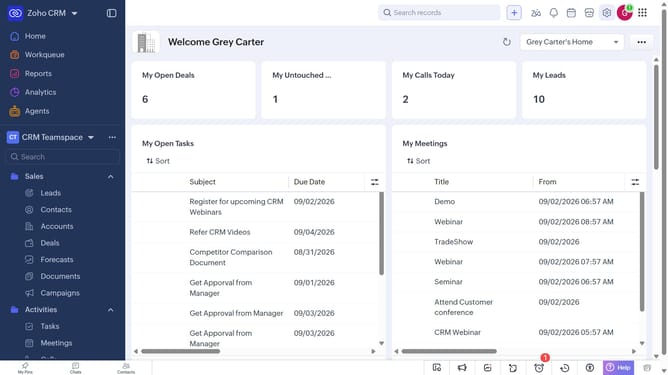
- First click on the settings icon in the top menu
- Next click on "Personal Settings" under the "General" section
- Click on the "Accessibility" tab
- After that, click on the "Vision" tab
- Then, locate the "Spacing" option
- Next, click the dropdown menu
- Finally, select "Condensed" from the dropdown
Why should you How to set text spacing to Condensed on Zoho CRM
Zoho is a robust suite of cloud software designed to enhance business efficiency and productivity.
One of the unique features of Zoho CRM is the ability to set text spacing to Condensed, providing a streamlined view for users. This allows for more information to be displayed on the screen without compromising readability.
By utilizing Condensed text spacing, users can effortlessly navigate through large datasets, making data management more efficient. It’s especially beneficial when working with detailed reports, ensuring crucial information is accessible at a glance.
Last update