How to set text spacing to Expanded on Zoho CRM
Here is how to set text spacing to expanded on zoho crm
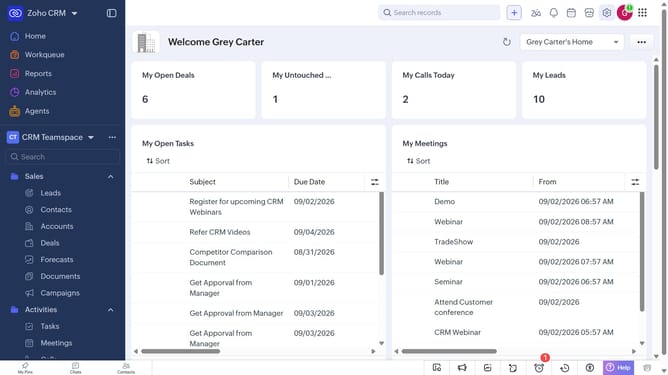
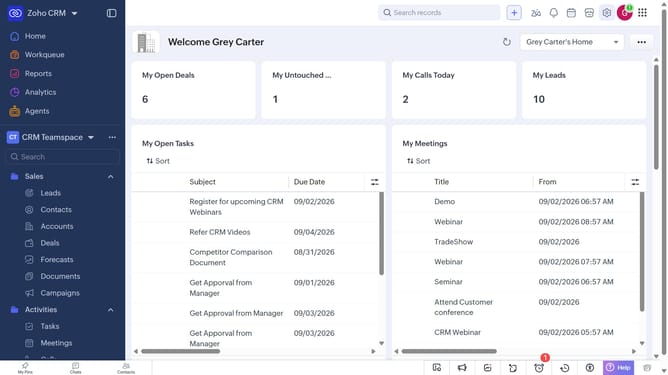
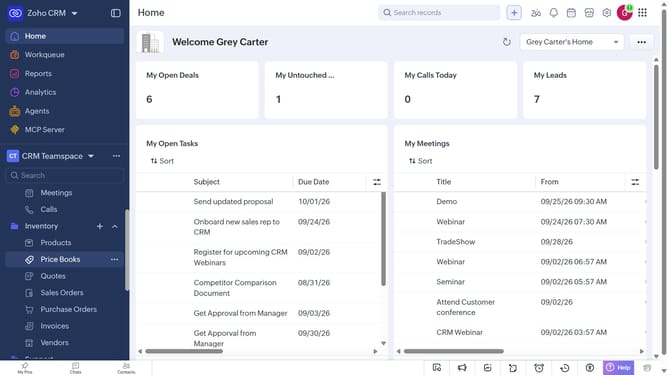
- First click on the settings icon in the top menu
- Next click on "Personal Settings" under the "General" section
- Click on the "Accessibility" tab
- After that, click on the "Vision" tab
- Then, locate the "Spacing" option
- Next, click on the dropdown menu
- Finally, select "Expanded" from the dropdown
Why should you How to set text spacing to Expanded on Zoho CRM
Zoho is a versatile platform designed to streamline your business operations with ease.
Setting text spacing to Expanded in Zoho CRM enhances readability, ensuring that your communications are clear and easily digestible. This feature helps in differentiating sections and making content stand out, especially when dealing with complex data or long paragraphs.
Using expanded text spacing can significantly improve the visual comfort of your emails and documents. It allows for a polished presentation, which can enhance professional communication and minimize misunderstandings.
Last update