How to assign a price book to another owner on Zoho CRM
Here is how to assign a price book to another owner on zoho crm
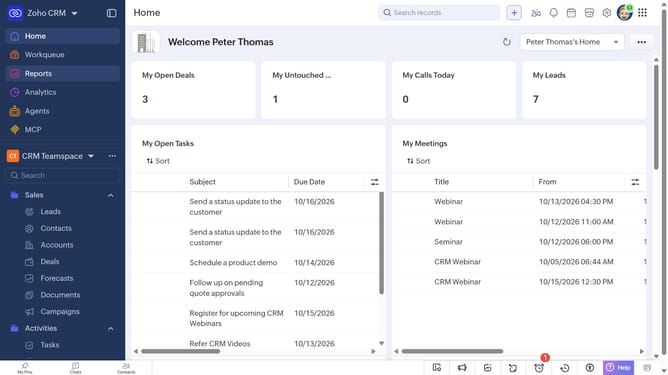
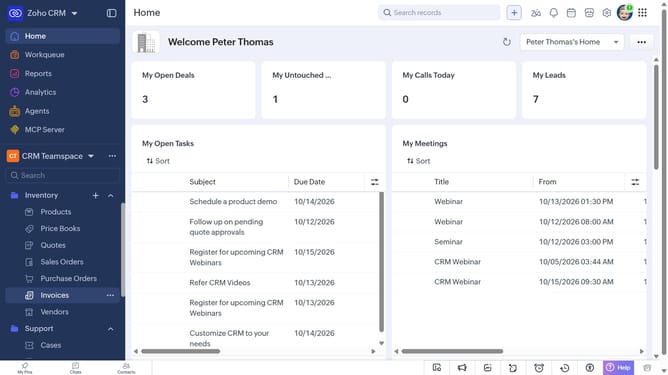
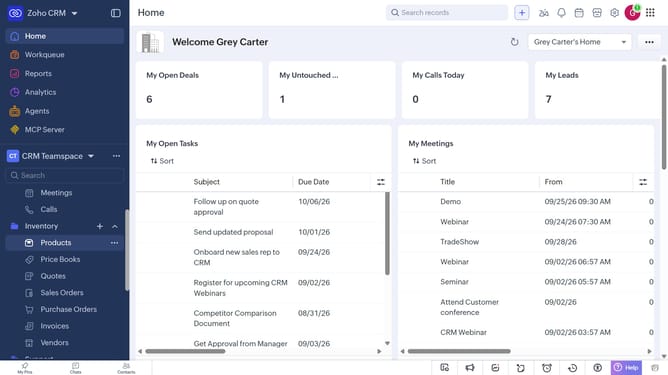
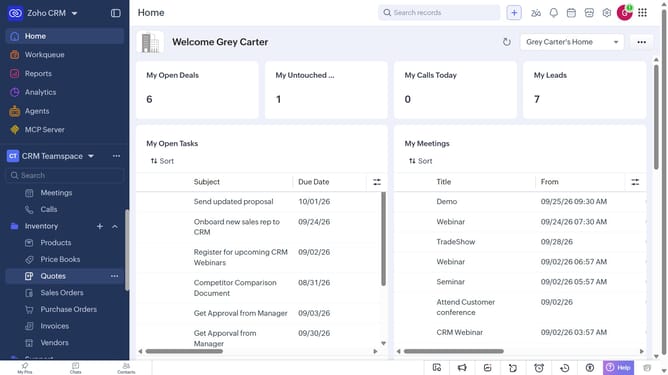
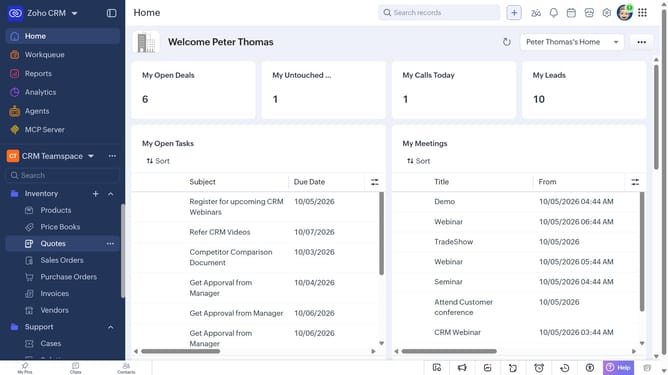
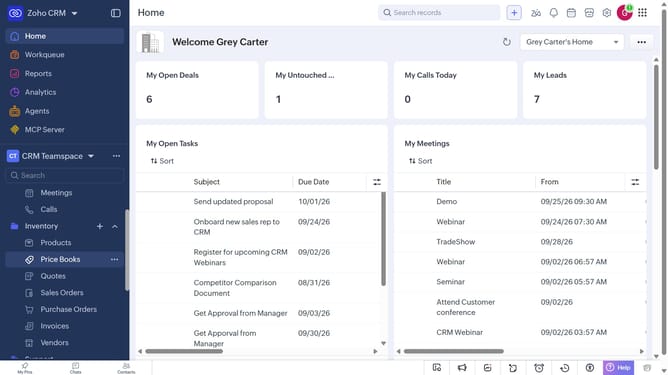
- First, click on "Price Books" under the "Inventory" section in the left sidebar menu
- Next, locate the price book whose owner you want to change
- Click on the "More options" button next to the price book
- After that, select "Change Owner" from the dropdown menu
- In the "Change Owner" modal, click on the dropdown
- Then select the new owner from the dropdown menu
- Next, check "Send Email notification" to enable alerts, or leave it unchecked
- Finally, click on the "Change Owner" button
Why should you How to assign a price book to another owner on Zoho CRM
Zoho CRM is an intuitive platform designed to streamline your business operations and enhance customer relationships.
Assigning a price book to another owner in Zoho CRM is a straightforward feature that enhances team collaboration and efficiency. It allows for seamless transition of responsibilities, ensuring that all team members have access to the most relevant pricing information when they need it.
This feature is particularly beneficial in dynamic sales environments, as it supports agility and quick response times. By delegating price book ownership, businesses can maintain continuity and accuracy in pricing strategies, ultimately contributing to more effective sales processes.
Last update