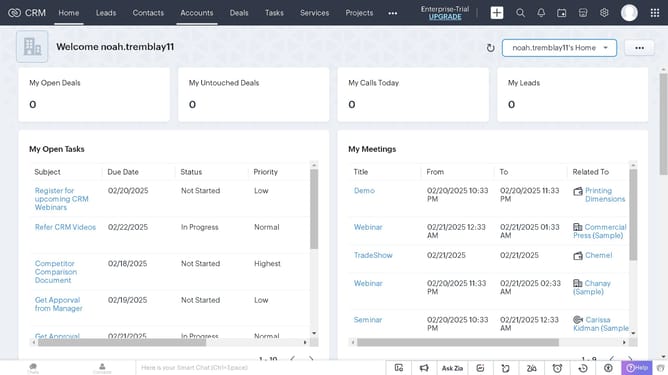
How to add tags to a price book on Zoho CRM
Here is how to add tags to a price book on zoho crm
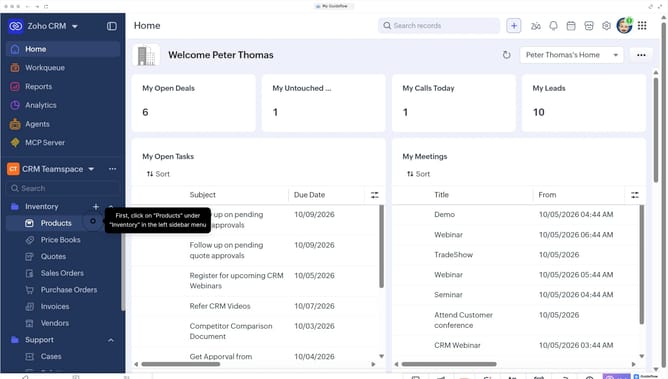
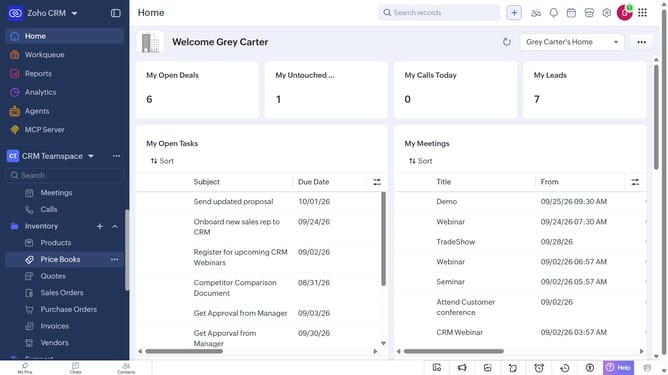
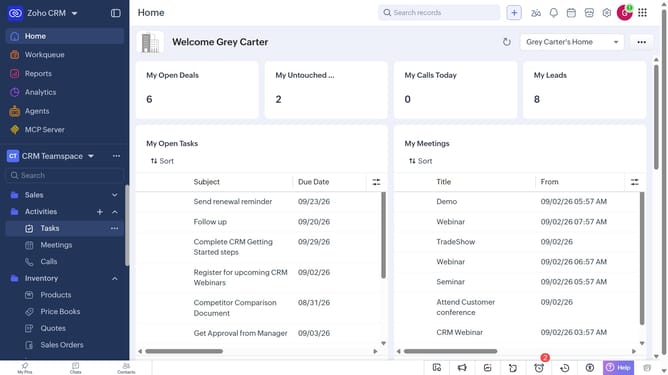
- First, click on "Price Books" under the "Inventory" section in the left sidebar menu
- Next, locate the price book you want to add tags to
- Click on the "More options" button next to the price book
- After that, select "Add Tags" from the dropdown menu
- Next, click on the "Enter Tags" field
- Then, you can choose from existing tags
- Alternatively, enter the tag you want to add and press "Enter"
- Finally, click on the "Save" button
Why should you How to add tags to a price book on Zoho CRM
Zoho CRM is a comprehensive customer relationship management platform tailored to enhance business productivity and streamline operations.
Adding tags to a price book in Zoho CRM allows for pinpoint categorization and immediate access to critical pricing data. By implementing tags, users can efficiently sort, filter, and identify price books without wading through extensive lists.
This feature enhances organizational clarity and promotes quicker decision-making. The ability to swiftly locate relevant price details not only saves time but also boosts productivity, enabling teams to respond to customer inquiries with greater accuracy and speed.
Last update