How to set cover image width for homepage in Gitbook
Here is how to set cover image width for homepage in gitbook
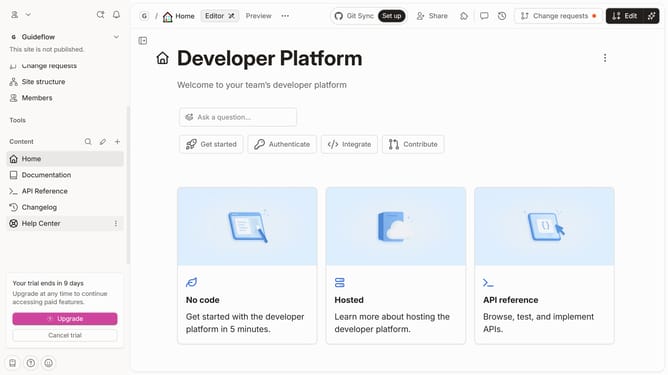
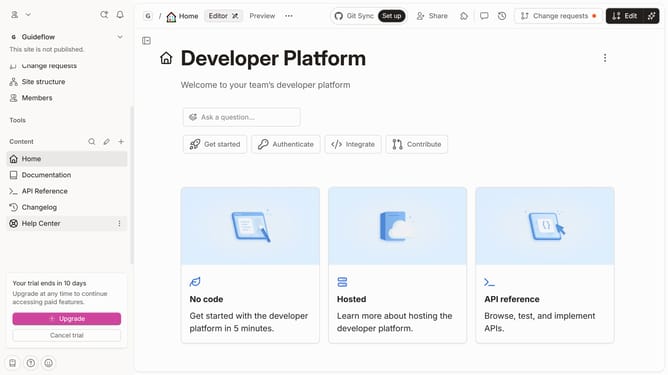
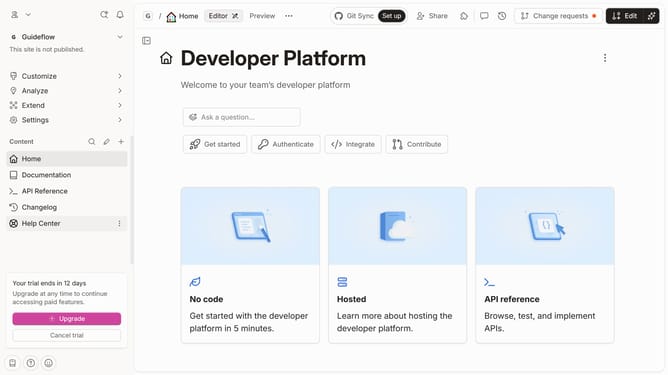
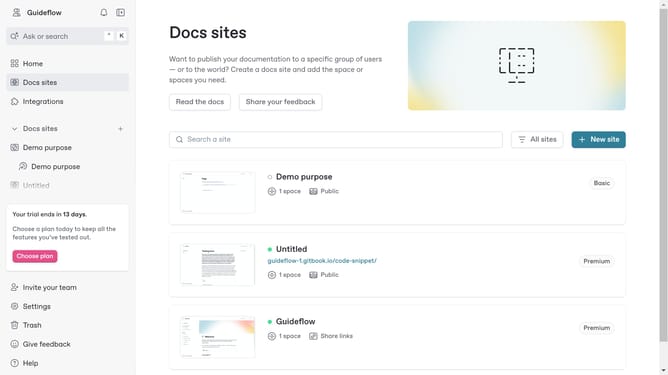
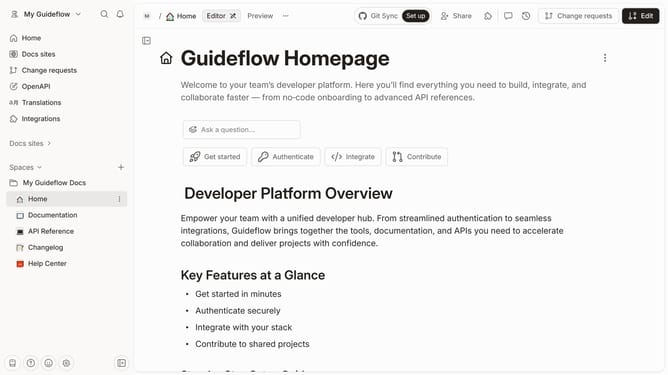
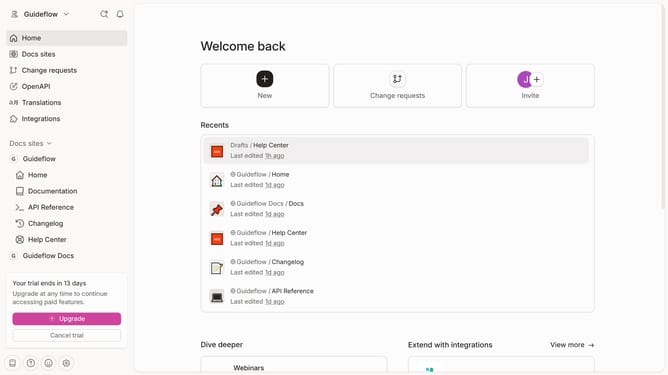
- First, click on "Home" in the left sidebar
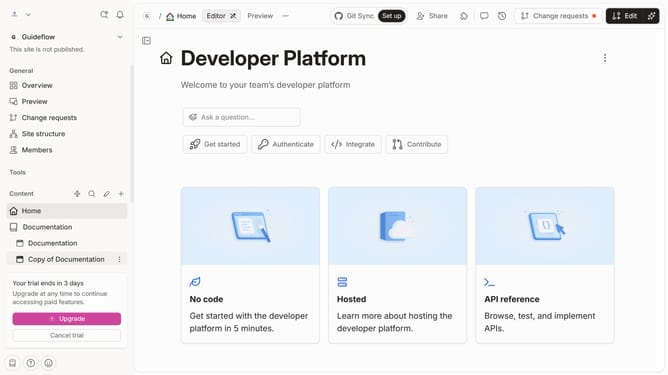
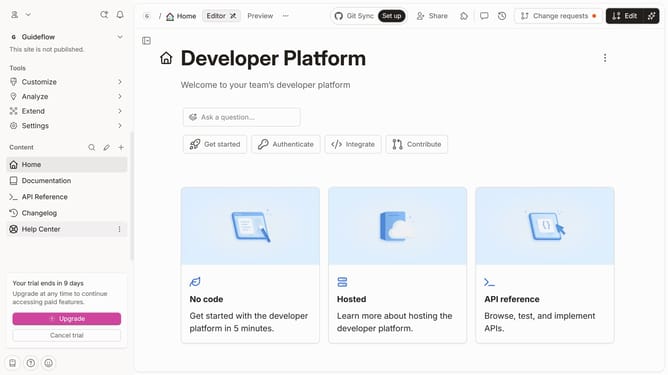
- Then, click on the "Edit" button in the header
- Next, click on "Cover options" in the displayed menu
- After that, select "Hero width" from the list of "Width" options
- Finally, click on the "Merge" button in the header
Why should you set cover image width for homepage in Gitbook
GitBook is an intuitive platform that empowers teams to document knowledge exquisitely.
One beneficial feature is the ability to set the cover image width on the homepage. This functionality allows users to tailor the visual presentation of their space, ensuring that the imagery aligns perfectly with the design ethos and brand aesthetics.
By adjusting the cover image width, you can enhance user engagement and create a welcoming, professional look for newcomers. This customization adds a unique personal touch, reflecting the identity and style of your documentation environment.
Last update