How to set a start and end date for a weekly running schedule for Pinterest scenario in Make
Here is how to set a start and end date for a weekly running schedule for pinterest scenario in make
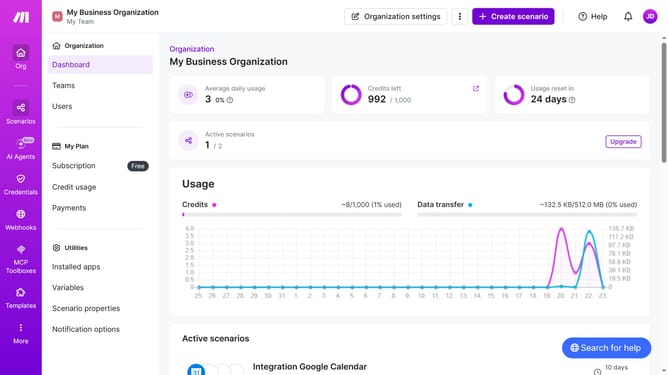
- First, click on the "Scenarios" icon in the left sidebar
- Then, click on the "Pinterest" scenario
- Next, click on the "Options" button
- Then, click and select the "Scheduling" option
- After that, click on the "Advanced settings" toggle to enable it
- Then, click on the "Start" input field to open the date picker
- Next, select a day from the calendar
- Then, click on the "End" input field to open the date picker
- After that, select a day from the calendar in the right panel
- Finally, click on the "Save" button
Why should you set a start and end date for a weekly running schedule for Pinterest scenario in Make
Make is an intuitive tool designed to automate tasks and streamline processes effortlessly.
Setting a start and end date for a weekly running schedule in Make allows users to precisely manage Pinterest scenarios, enabling scheduled posts or updates to coincide with strategic timelines.
This feature ensures that content is organized, timely, and consistent, boosting user engagement and simplifying workflow management for marketers and content creators.
By specifying time frames, productivity is enhanced as manual planning is minimized, and focus is shifted to content quality and strategy.
Last update