How to add time for a daily running schedule for Google Form scenario in Make
Here is how to add time for a daily running schedule for google form scenario in make
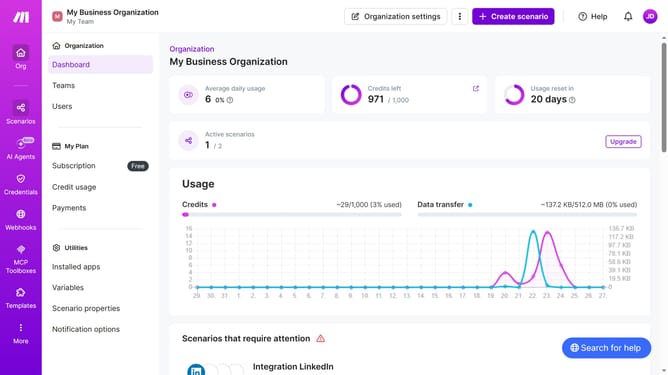
- First click on "Scenarios" icon in the left sidebar
- Then click on the "Google Forms" scenario
- Then click on the "Options" button in the header
- Then select "Scheduling" from the dropdown menu
- Then click on "+ Add more times" button
- Then click on the second time input field and enter your preferred time
- Finally click on the "Save" button
Why should you add time for a daily running schedule for Google Form scenario in Make
Make is a versatile automation platform designed to simplify and enhance workflow processes.
Adding time to your daily running schedule for a Google Form scenario in Make allows for seamless automation and improved organization. By integrating time-specific tasks, you can ensure your Google Form responses are collected and processed at optimal times, reducing manual efforts and increasing efficiency.
This feature empowers users by streamlining data collection and analysis, helping to maintain consistency in daily tasks while freeing up valuable time for other important activities.
Last update