How to set a start and end date for a monthly running schedule for Shopify scenario in Make
Here is how to set a start and end date for a monthly running schedule for shopify scenario in make
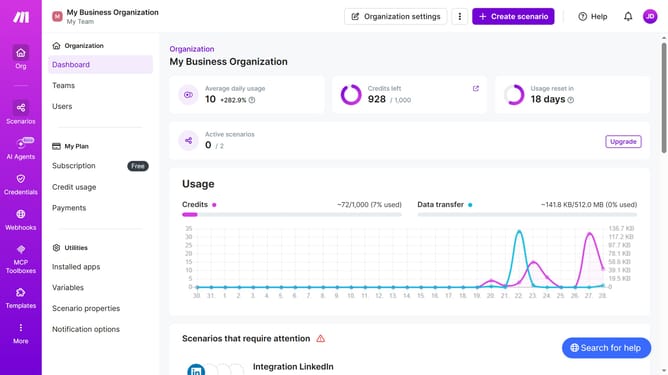
- First click on "Scenarios" in the left sidebar
- Then click on the "Shopify" scenario
- Next, click on the "Options" dropdown in the header
- Then select "Scheduling" from the dropdown menu
- After that, toggle ON the "Advanced settings" switch
- Then click on the "Start" date input field
- Then select the start date by clicking a day in the calendar
- Next, click on the "End" date input field
- Then select the end date by clicking a day in the calendar
- Finally click on the "Save" button
Why should you set a start and end date for a monthly running schedule for Shopify scenario in Make
Make is a powerful tool that automates workflows, simplifying tasks and enhancing productivity.
Setting a start and end date for a monthly running schedule in Shopify using Make is a game-changer. It offers precision and control, enabling you to streamline operations efficiently.
With this feature, businesses can effectively manage campaigns or seasonal offers. The ability to predefine times ensures that marketing efforts align perfectly with strategic plans, avoiding manual errors and maximizing impact.
Utilizing this functionality translates to greater focus on growth, while routine tasks take care of themselves.
Last update