How to manage running schedule of a Calendly scenario in Make
Here is how to manage running schedule of a calendly scenario in make
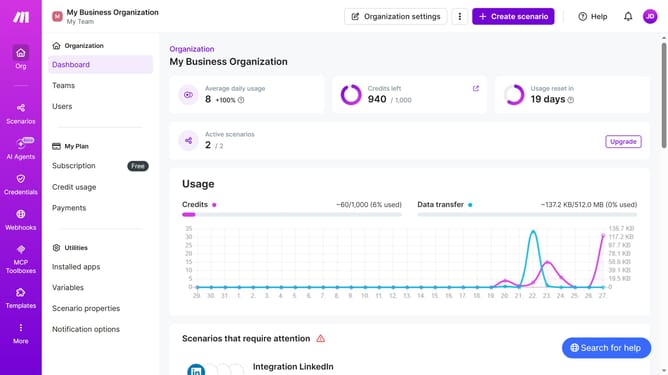
- First, click on "Scenarios" in the left sidebar
- Then, click on the Calendly scenario
- Next, click on the "Edit" button
- After click the "Immediately as data arrives" option
- Then, click on the "Save" button
- Finally, click on the "Activate scenario" button
Why should you manage running schedule of a Calendly scenario in Make
Make is a dynamic automation platform designed to streamline and connect various processes effortlessly.
Managing the running schedule of a Calendly scenario in Make enhances your productivity by allowing greater control over your calendar events.
This feature ensures seamless coordination, reduces the risk of scheduling conflicts, and optimizes time management.
By leveraging this capability, users can maximize efficiency, focus on priority tasks, and enhance overall organizational productivity.
Last update