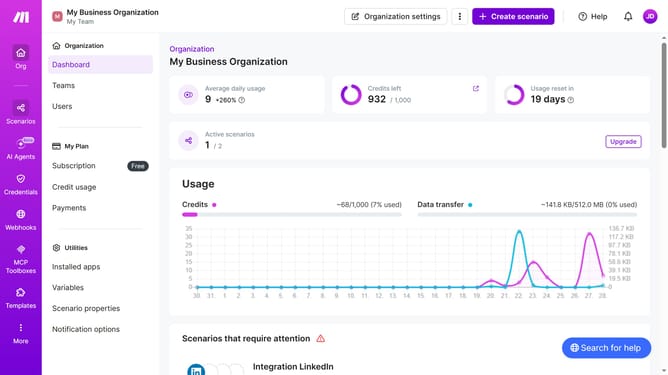
How to manage running schedule of a Slack scenario on specified dates in Make
Here is how to manage running schedule of a slack scenario on specified dates in make
- First click on "Scenarios" button in the left sidebar
- Then click on the Slack scenario in the list
- Next, click on the "Options" button
- Then select "Scheduling" from the dropdown menu
- Click on the "Run scenario" dropdown menu
- Then select "Specified dates" option
- After that, click on the "Months" dropdown menu
- Then select a checkbox form the month's list
- Next, click on the "Days" dropdown menu
- Then select a checkbox form the day's list
- Then click on the "Save" button to save the schedule
- Finally, click on the "Activate scenario" button to activate the scenario
Why should you manage running schedule of a Slack scenario on specified dates in Make
Make is a versatile automation platform designed to streamline your workflow by connecting apps and systems.
Managing the running schedule of a Slack scenario on specified dates in Make allows you to optimize communication and ensure timely execution of tasks. By setting specific dates, you can align Slack activities with critical business events, maximizing productivity and reducing manual interventions.
This feature is especially beneficial for teams that require precision and consistency, supporting strategic planning and enhancing collaboration. Overall, it simplifies operations and boosts efficiency.
Last update