How to manage a one-time running schedule for a LinkedIn scenario in Make
Here is how to manage a one-time running schedule for a linkedin scenario in make
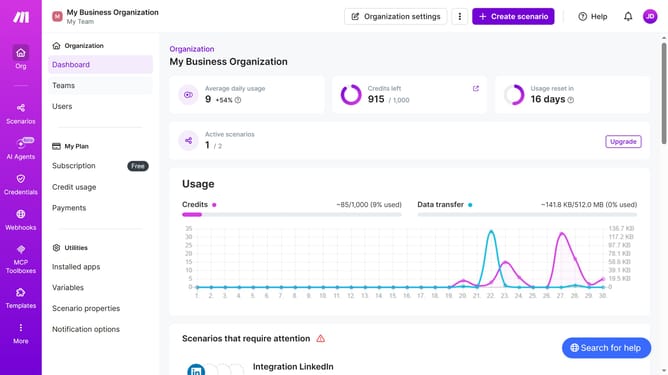
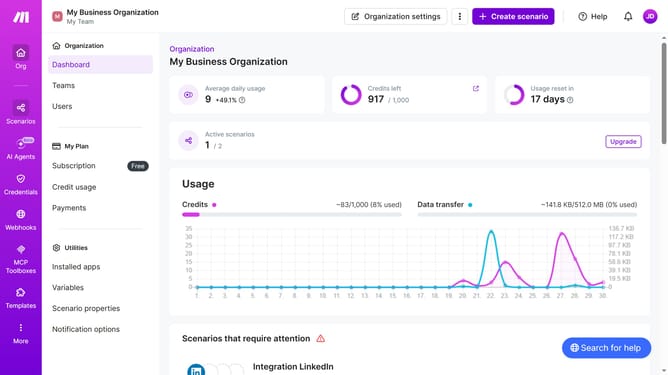
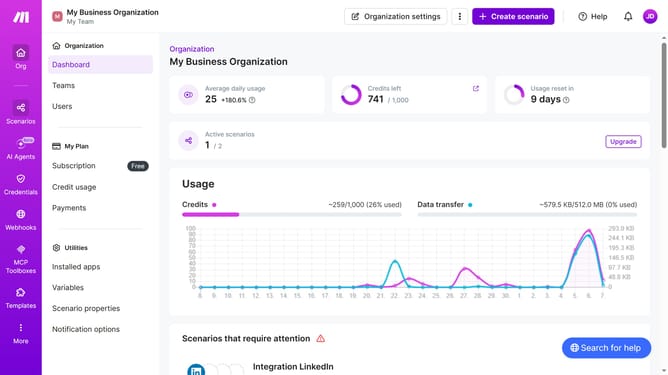
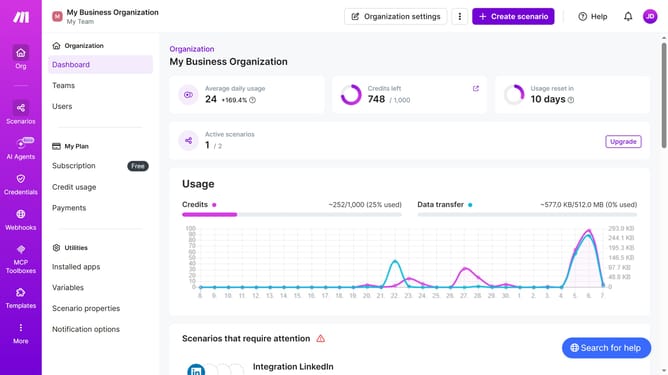
- First click on "Scenarios" in the left sidebar
- Then click on the LinkedIn scenario that you want to manage
- Next click on the "Options" button
- Then select "Scheduling" from the dropdown menu
- After that click on the "Run scenario" dropdown
- Then select "Once" from the dropdown list
- Then click on the "Save" button
- Finally click on the "Activate scenario" button
Why should you manage a one-time running schedule for a LinkedIn scenario in Make
Make is a powerful automation platform designed to streamline and elevate your workflow efficiency.
Managing a one-time running schedule for a LinkedIn scenario in Make allows users to precisely coordinate and execute tasks at their discretion. This feature ensures tasks are performed exactly when needed, greatly enhancing control and flexibility over your LinkedIn activities.
By leveraging this capability, users can align their networking activities with peak engagement times, optimizing their presence on LinkedIn for maximum impact. Embrace enhanced efficiency and engagement without a hitch.
Last update