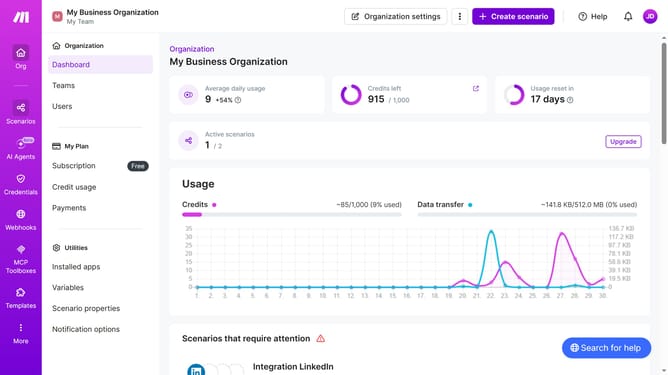
How to set a start and end date for a monthly running schedule for Dropbox scenario in Make
Here is how to set a start and end date for a monthly running schedule for dropbox scenario in make
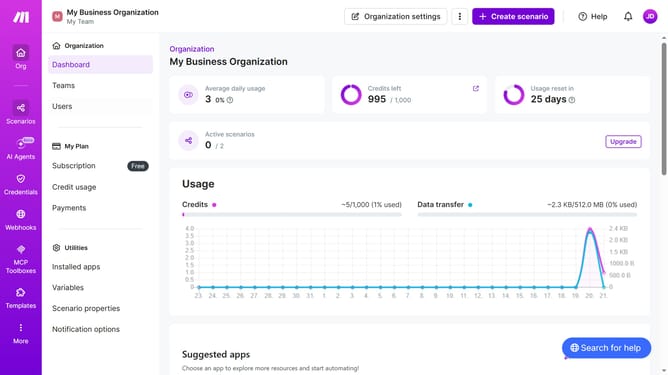
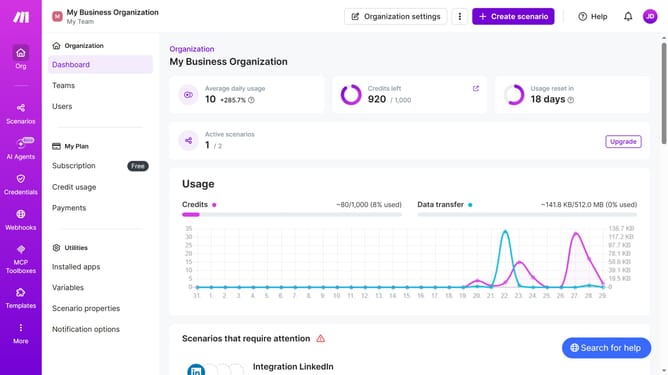
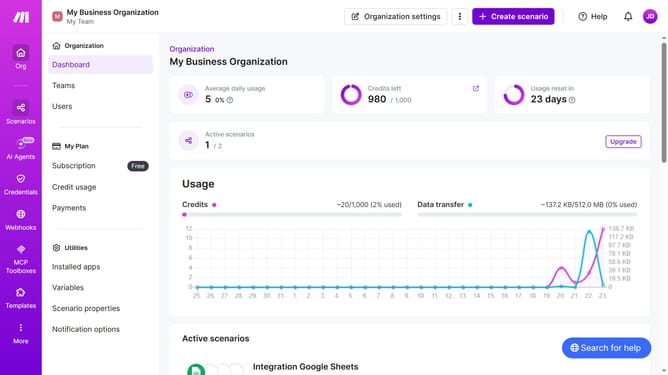
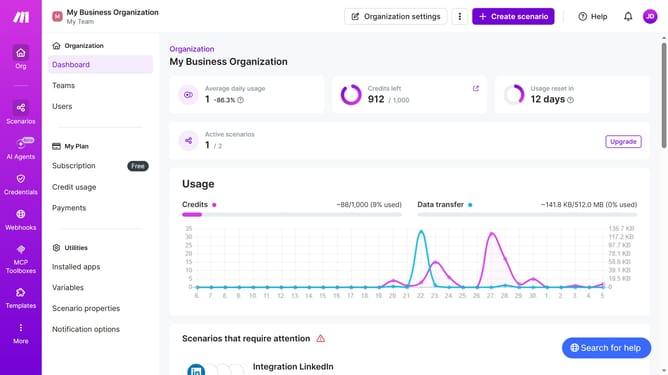
- First click on the "Scenarios" item in the left sidebar
- Then click on the "Integration Dropbox" scenario in the main panel
- Next, click on the "Options" button in the header
- Then select the "Scheduling" option from the dropdown menu
- After that, toggle on the "Advanced settings" switch
- Next, click on the "Start" date input field
- Then select a day from the calendar
- After that, click on the "End" date input field
- Then select a day from the calendar
- Finally click on the "Save" button
Why should you set a start and end date for a monthly running schedule for Dropbox scenario in Make
Make is a powerful automation tool that effortlessly connects apps to streamline workflows and boost productivity.
Setting a start and end date for a monthly running schedule in Dropbox scenario with Make elevates project management. This feature ensures that your automated tasks run only when needed, avoiding unnecessary actions.
It adds precision to scheduling, helping you to maintain a focused and efficient operation. With this feature, stay organized, reduce risks of tasks overlapping, and optimize resource allocation.
Ultimately, it simplifies complex workflows, saving you time and enhancing control over your processes.
Last update