How to manage a one-time running schedule for a Google Calendar scenario in Make
Here is how to manage a one-time running schedule for a google calendar scenario in make
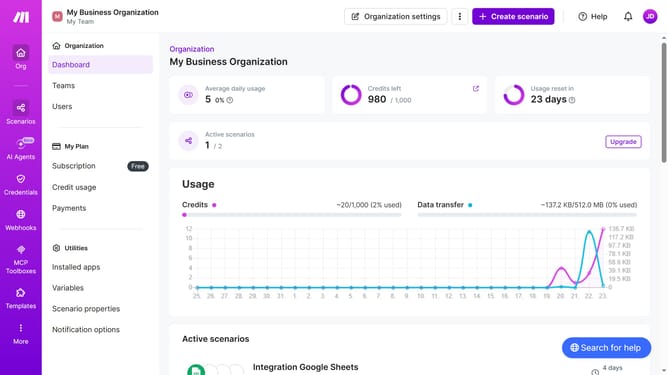
- First click on "Scenarios" option in the left sidebar
- Then click on the Google Calendar scenario item in the list
- Next click on the "Options" button in the header
- Then click on the "Scheduling" option from the dropdown menu
- Then click on the "Run scenario" dropdown in the schedule settings
- Select "Once" from the scheduling options
- Finally click on the "Save" button
Why should you manage a one-time running schedule for a Google Calendar scenario in Make
Make is a dynamic platform designed to streamline automations and enhance productivity effortlessly.
Managing a one-time running schedule for a Google Calendar scenario in Make allows users to optimize task execution without the hassle of manual interventions.
This feature supports precise scheduling, ensuring that critical appointments and events are efficiently organized in a timely manner.
Enjoy the benefits of stress-free management and improved coherence in your daily routines with seamless calendar integration.
Last update