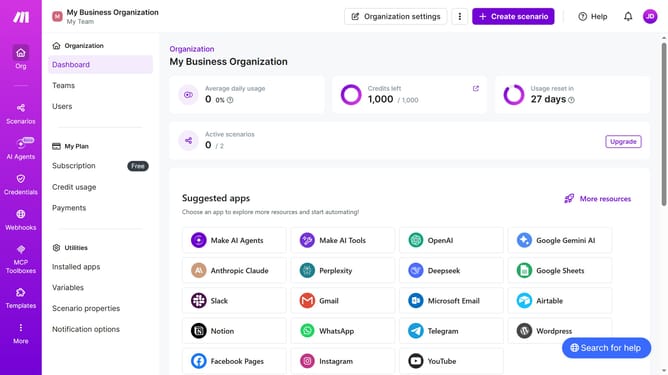
How to add time for a weekday running schedule for Gmail scenario in Make
Here is how to add time for a weekday running schedule for gmail scenario in make
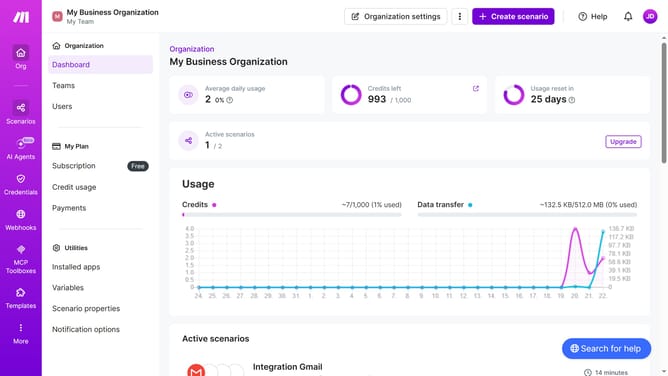
- First, click on "Scenarios" in the left sidebar
- Then, click on the "Integration Gmail" scenario in the main panel
- Next, click on the "Options" button
- After that, select "Scheduling" from the dropdown menu
- Then, click on the "+ Add more times" butto
- Next, click on the "Time 2" field to edit it
- Finally, click on the "Save" butto
Why should you add time for a weekday running schedule for Gmail scenario in Make
Make is a dynamic platform designed to automate and streamline business processes effortlessly.
Adding a time for a weekday running schedule in a Gmail scenario with Make allows users to optimize their email workflow effectively. By setting specific times for Gmail actions, users can ensure that their communications are timely and consistent throughout the week.
This feature enhances productivity by aligning email processes with the user's or team's work rhythms and schedules.
Ultimately, using Make's scheduling feature empowers users to maintain a balanced and organized email management system, reducing manual tasks and increasing efficiency.
Last update