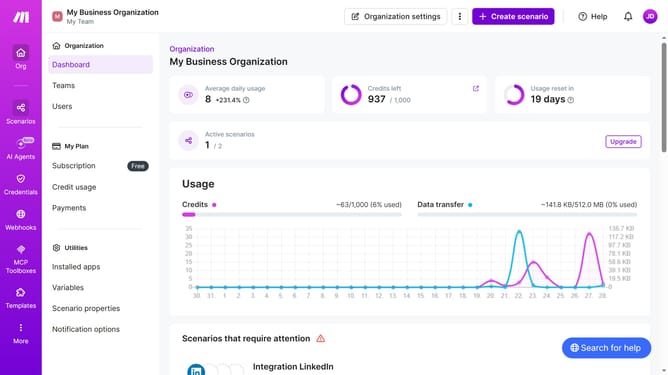
How to manage a one-time running schedule for a Gmail scenario in Make
Here is how to manage a one-time running schedule for a gmail scenario in make
- First click on "Scenarios" in the left sidebar
- Then click on Gmail scenario
- Then click on "Options" button
- Then select "Scheduling" option
- Then click on dropdown with "Run scenario"
- Then select "Once" from the dropdown
- Finally click on "Save" button
Why should you manage a one-time running schedule for a Gmail scenario in Make
Make is a powerful automation platform designed to streamline workflows and connect applications seamlessly.
Managing a one-time running schedule for a Gmail scenario in Make is effortless yet impactful. It allows users to automate specific tasks without the need for recurring schedules, saving time and reducing manual effort.
By setting a one-time schedule, you ensure critical emails or tasks are handled precisely when needed. This feature aids in achieving timely email management and supports productivity for individuals and businesses. With these streamlined processes, Make brings efficiency and clarity to your inbox management.
Last update