How to set a start and end date for a monthly running schedule for OneDrive scenario in Make
Here is how to set a start and end date for a monthly running schedule for onedrive scenario in make
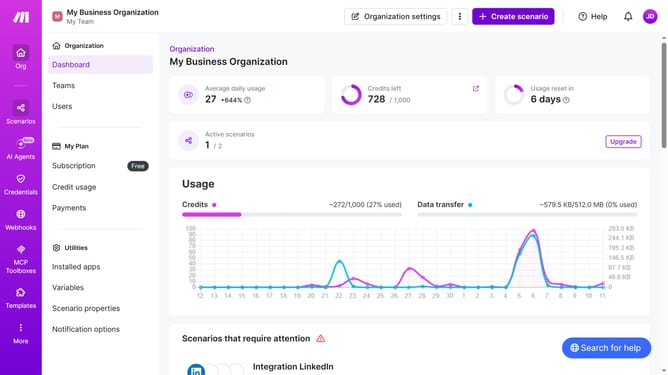
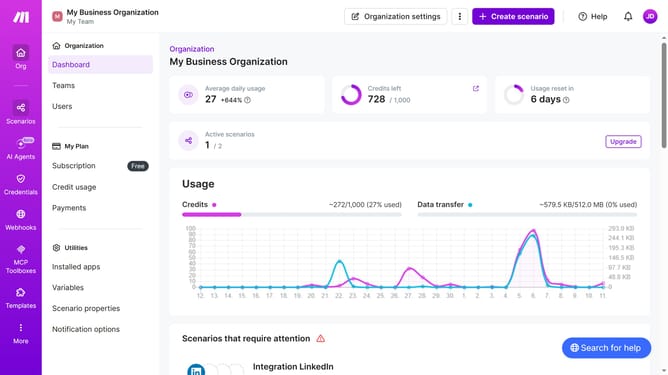
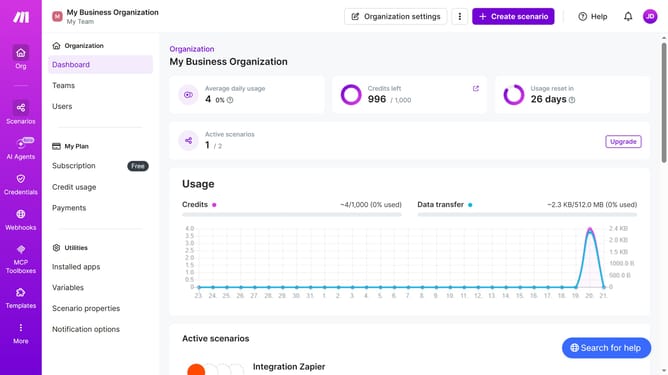
- First click on "Scenarios" item in the left sidebar
- Then click on "OneDrive" scenario name in the main content
- Click on the "Options" dropdown in the top menu
- Select "Scheduling" from the dropdown menu
- Toggle on the switch for "Advanced settings"
- Click on the "Start" date input field
- Select a date from the calendar pop up
- Now click on the "End" date input field
- Select an end date from the calendar pop up
- Finally click on the "Save" button
Why should you set a start and end date for a monthly running schedule for OneDrive scenario in Make
Make is a powerful automation platform that streamlines your workflow by connecting apps and services seamlessly.
Setting a start and end date for a monthly running schedule in Make's OneDrive scenario optimizes task management by giving you complete control over your data operations.
This feature ensures your project timelines are respected, enhancing productivity while preventing unwanted data processing outside the desired timeframe.
By using this capability, you achieve efficient resource allocation and maintain a well-organized workflow consistently.
Last update