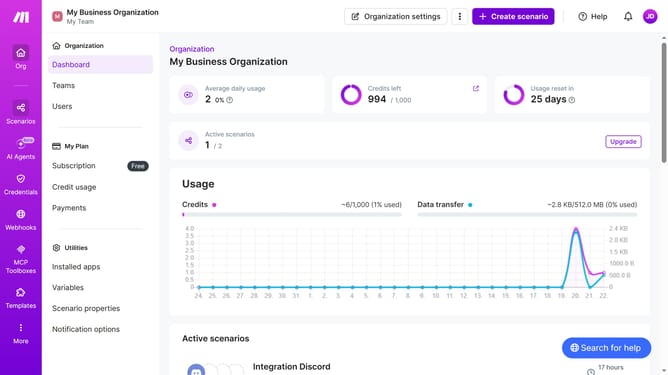
How to manage running schedule of a Trello scenario in Make
Here is how to manage running schedule of a trello scenario in make
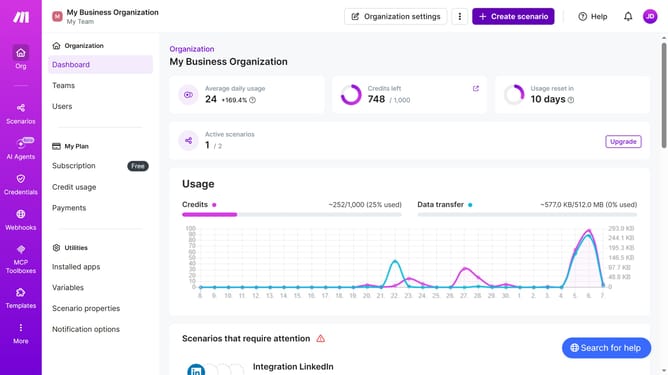
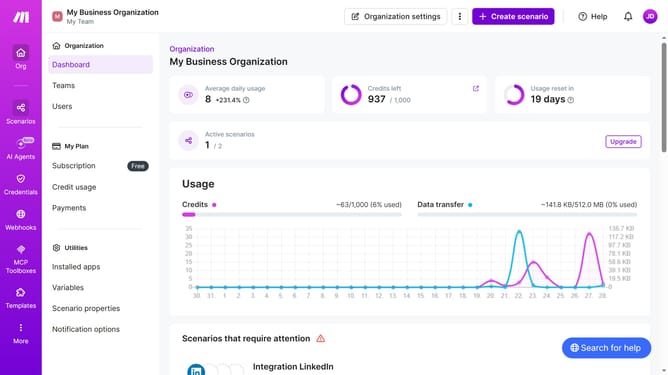
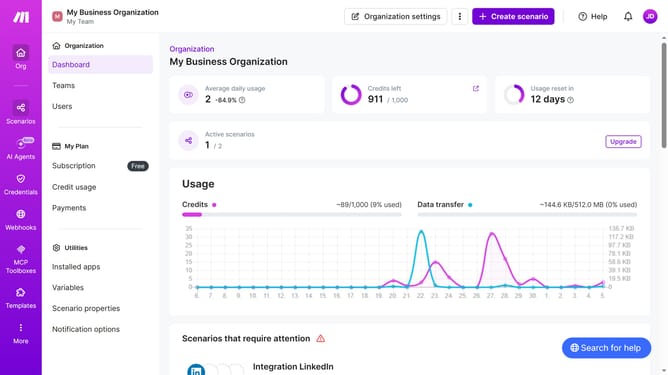
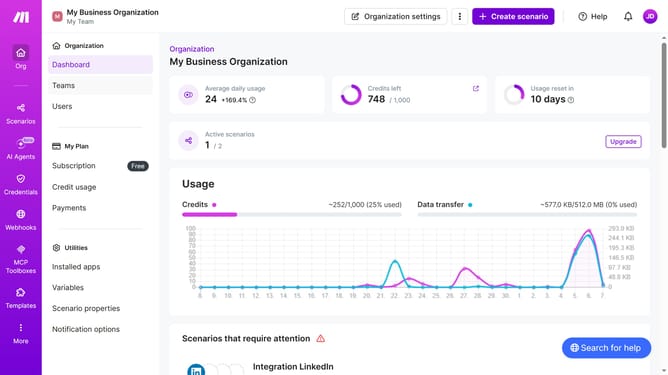
- First, click on "Scenarios" in the left sidebar
- Then, click on the Trello scenario to open it
- Next, click on the "Edit" button in the top right corner
- Then, click on the "Immediately as data arrives"
- After that, click on the "Save" button
- Then, click on the "Activate scenario" button
- Finally, click on the "save" icon to save the scenario
Why should you manage running schedule of a Trello scenario in Make
Make is a powerful platform that automates workflows to enhance productivity.
Managing the running schedule of a Trello scenario in Make streamlines your task management, ensuring seamless process automation without constant manual intervention.
This feature allows for optimal scheduling, enhancing efficiency by executing tasks precisely when needed, thus saving time and reducing the risk of oversight.
Ultimately, it empowers users to maintain focus on critical tasks while automation handles routine operations effortlessly.
Last update