How to add time for a weekday running schedule for OneDrive scenario in Make
Here is how to add time for a weekday running schedule for onedrive scenario in make
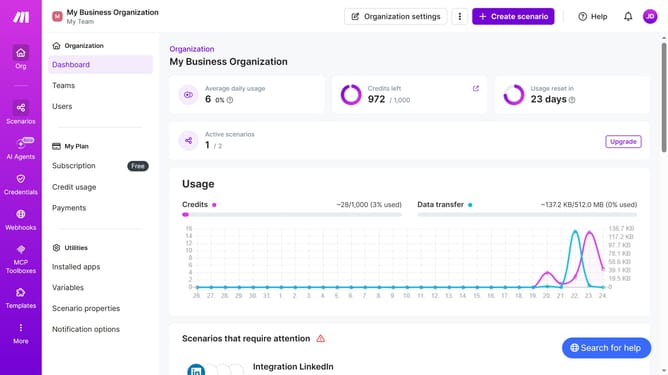
- First click on "Scenarios" in the left sidebar navigation
- Then click on the "OneDrive" scenario in the main content area
- Next, click on the "Options" button in the scenario header
- Then select "Scheduling" from the dropdown menu
- Click on "+ Add more times" to add additional scheduling times
- Click on the "Time 2" input field and insert your preferred time
- Finally click on the "Save" button
Why should you add time for a weekday running schedule for OneDrive scenario in Make
Make is an intuitive platform that allows seamless integration of apps and automation of workflows to boost productivity.
Adding time for a weekday running schedule in a OneDrive scenario with Make enhances your workflow planning by allowing meticulous control over automated processes.
This feature ensures your tasks are executed at the right intervals, optimizing time management and efficiency. Incorporating this into your routine offers a seamless synergy of automation and organization, maximizing the potential of your OneDrive utilities.
Last update