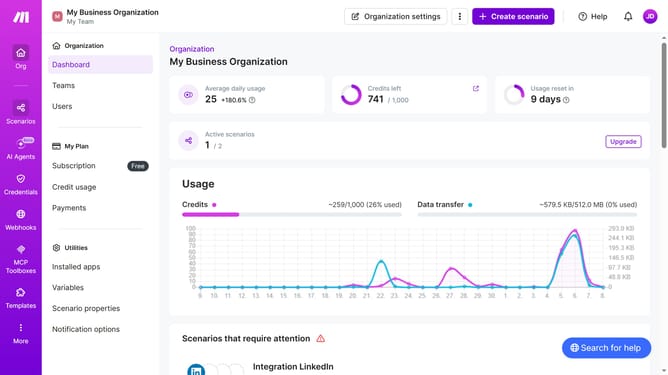
How to set a start and end date for a monthly running schedule for Microsoft 365 Email (Outlook) scenario in Make
Here is how to set a start and end date for a monthly running schedule for microsoft 365 email (outlook) scenario in make
- First click on the "Scenarios" item in the left sidebar
- Then click on the "Microsoft 365 Email (Outlook)" item
- Click on the "Options" button in the header
- Select "Scheduling" from the dropdown menu
- Click on the "Advanced settings" toggle
- Click inside the "Start" date input field
- Then select a date from the calendar dropdown
- Click inside the "End" date input field
- Next select a end date from the calendar dropdown
- Finally click on the "Save" button
Why should you set a start and end date for a monthly running schedule for Microsoft 365 Email (Outlook) scenario in Make
Make is a versatile automation platform that enhances productivity by streamlining tasks across various applications.
Setting a start and end date for a monthly running schedule in Microsoft 365 Email scenarios helps maintain organized, timely communications. This feature ensures emails are sent precisely when needed, providing a structured workflow that fits your monthly planning effortlessly.
By automating email schedules, you avoid the hassle of manual intervention, reducing errors and saving valuable time. Ultimately, this leads to more efficient project management and communication consistency.
Last update