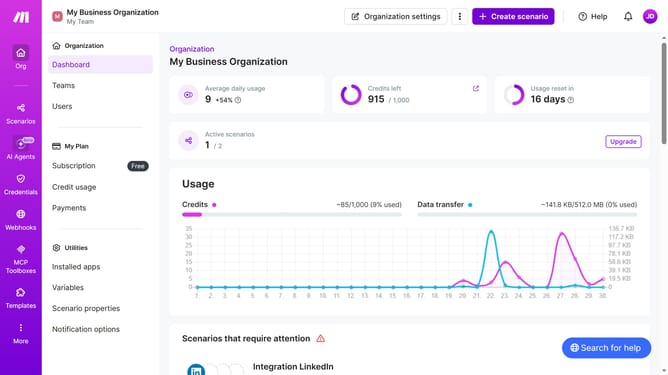
How to set a weekly running schedule for a Zapier scenario in Make
Here is how to set a weekly running schedule for a zapier scenario in make
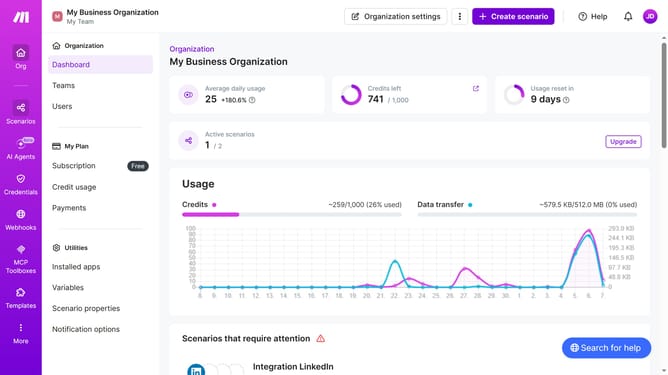
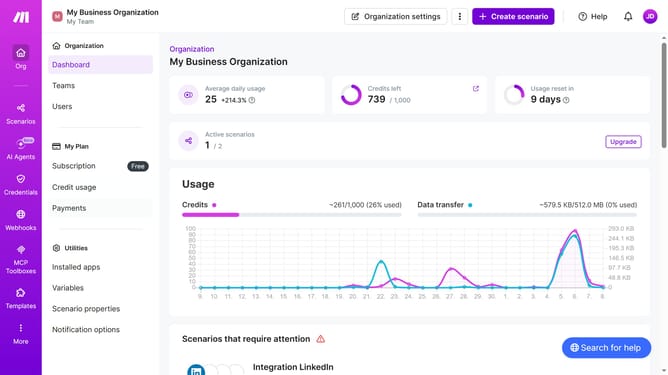
- First click on "Scenarios" in the sidebar
- Then click on "Zapier" scenario in the main panel
- Then click on "Options" dropdown
- Then select "Scheduling" from the dropdown menu
- Then click on the "Run scenario" dropdown
- Then select "Weekly" from the dropdown menu
- Then click on the "Days" dropdown
- Then select checkbox for your preferred days
- Finally click on the "Save" button
Why should you set a weekly running schedule for a Zapier scenario in Make
Make empowers automation by seamlessly connecting apps and services to streamline workflows.
The ability to set a weekly running schedule for a Zapier scenario in Make is a time-saving game changer. It ensures that your automation processes align perfectly with your weekly tasks, freeing up your time for more strategic activities.
Choosing this feature means increased efficiency, as it reduces manual input and ensures consistency in your automated tasks. With this, you indulge in the satisfaction of having your digital tasks run like clockwork every single week.
Last update