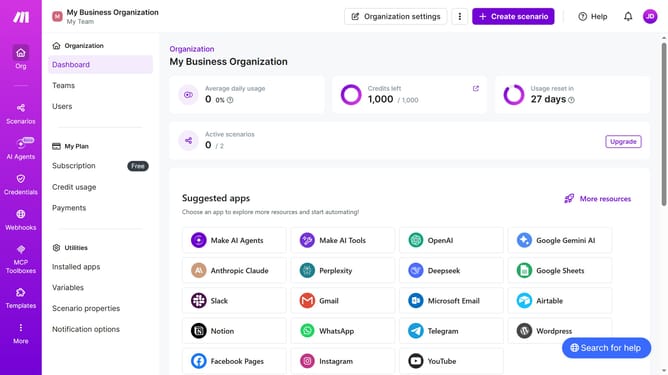
How to add time for a weekday running schedule for Microsoft 365 Email (Outlook) scenario in Make
Here is how to add time for a weekday running schedule for microsoft 365 email (outlook) scenario in make
- First click on "Scenarios" in the left sidebar
- Then click on the "Microsoft 365 Email (Outlook)" scenario
- Next click on the "Options" button in the header
- Then select "Scheduling" from the dropdown menu
- After that click on "+ Add more times" button
- Next click on the "Time 2" input field and add another time slot
- Finally click on the "Save" button
Why should you add time for a weekday running schedule for Microsoft 365 Email (Outlook) scenario in Make
Make is a powerful workflow automation platform designed to streamline and enhance productivity.
One of its exceptional features is the ability to schedule specific times for running Microsoft 365 Email scenarios during weekdays. By leveraging this feature, users can ensure their Outlook tasks execute consistently and efficiently, aligning with their daily work rhythms.
This functionality not only optimizes email management but also integrates seamlessly into existing routines, reducing administrative burdens and enhancing workplace efficiency.
Last update