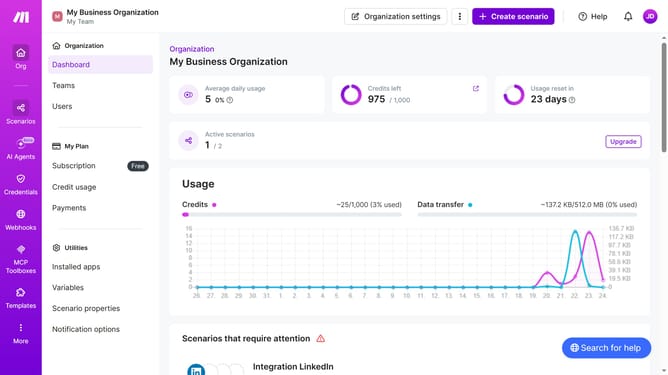
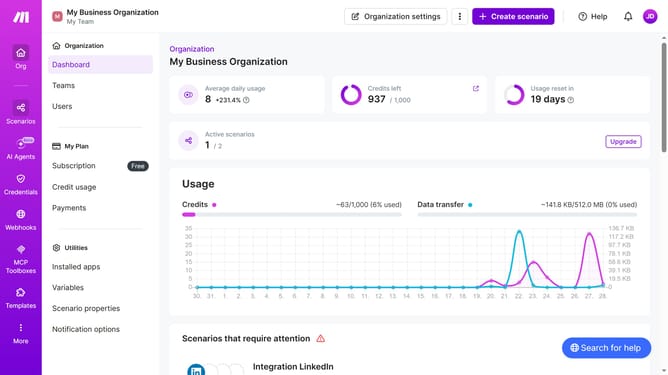
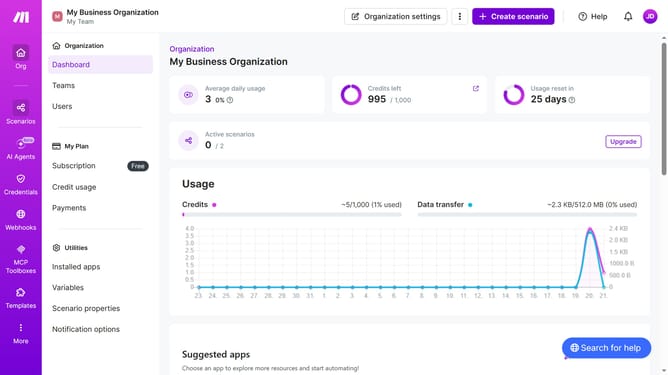
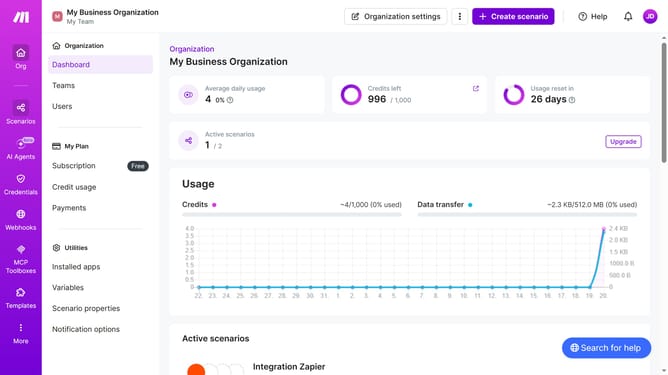
How to manage daily running schedule of a Dropbox scenario in Make
Here is how to manage daily running schedule of a dropbox scenario in make
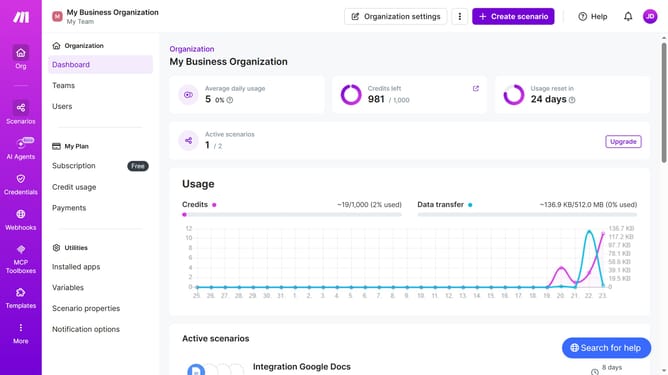
- First, click on "Scenarios" in the left sidebar
- Then, click on the Dropbox scenario to open its details
- Next, click on the "Options" dropdown button in the top action bar
- From the dropdown menu, select the "Scheduling" option
- In the "Schedule settings" modal, click on the "Run scenario" dropdown
- Then, select the "Daily" option from the expanded list
- Next, click on the time input field to edit the time
- Finally, click on the "Save" button to apply the changes
Why should you manage daily running schedule of a Dropbox scenario in Make
Make is a powerful automation platform designed to streamline complex workflows effortlessly.
Managing a daily running schedule of a Dropbox scenario in Make includes fine-tuning automated tasks to maintain consistency and productivity. This feature allows users to schedule processes during off-peak hours, ensuring that operations run smoothly without disrupting daily activities.
Utilizing this scheduling capability ensures maximum efficiency by allowing users to automate repetitive tasks, ultimately saving time and boosting overall productivity. It provides the flexibility to tailor automation to fit the unique needs of any workflow.
Last update