How to manage monthly running schedule of a Slack scenario in Make
Here is how to manage monthly running schedule of a slack scenario in make
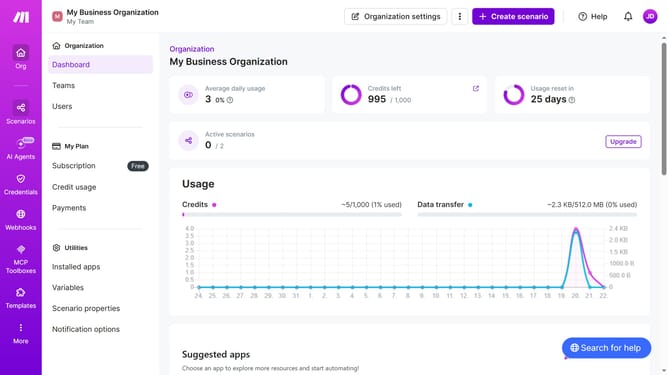
- First, click on "Scenarios" option in the left sidebar
- Then click on the Slack scenario displayed on the right side of the screen
- Next, click on the "Options" dropdown menu
- From the dropdown menu, select "Scheduling"
- Then click on the "Weekly" dropdown menu in the schedule settings
- Select "Monthly" from the expanded list of scheduling options
- Finally, click on the "Save" button
Why should you manage monthly running schedule of a Slack scenario in Make
Make is a powerful automation platform designed to streamline workflows effortlessly.
Managing a monthly running schedule for a Slack scenario in Make is incredibly efficient, allowing for seamless maintenance of your communication workflows.
With scheduled automation, you ensure timely updates, consistent slack messaging, and enhanced productivity without manual intervention.
Utilizing this feature optimizes team coordination and ensures crucial information is delivered precisely when needed, fostered within an organized framework.
Last update