How to set a start and end date for a monthly running schedule for Pinterest scenario in Make
Here is how to set a start and end date for a monthly running schedule for pinterest scenario in make
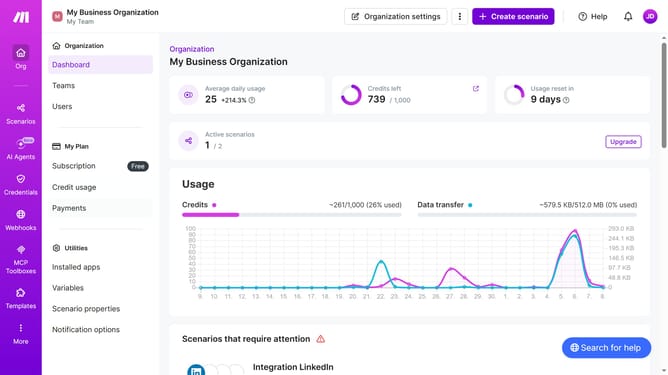
- First click on "Scenarios" in the left sidebar
- Then click on the "Pinterest" scenario
- Next, click on the "Options" button
- Then select the "Scheduling" option from the dropdown menu
- After that, click on the toggle switch for "Advanced settings" to enable it
- Click on the "Start" date input field
- Then, in the calendar view, select a day
- Then click on the "End" date input field
- In the calendar view, select an end day
- Finally, click on the "Save" button
Why should you set a start and end date for a monthly running schedule for Pinterest scenario in Make
Make is a versatile automation tool that enhances workflow efficiency.
By setting a start and end date for a monthly running schedule for your Pinterest scenario in Make, you gain control and precision in your posting activities. This feature ensures content is delivered consistently within a specific timeline, aligning with strategic goals and campaigns.
Using defined parameters not only enhances campaign effectiveness but also optimizes time management, allowing you to focus on creative tasks rather than manual scheduling.
Last update