How to manage a one-time running schedule for a OneDrive scenario in Make
Here is how to manage a one-time running schedule for a onedrive scenario in make
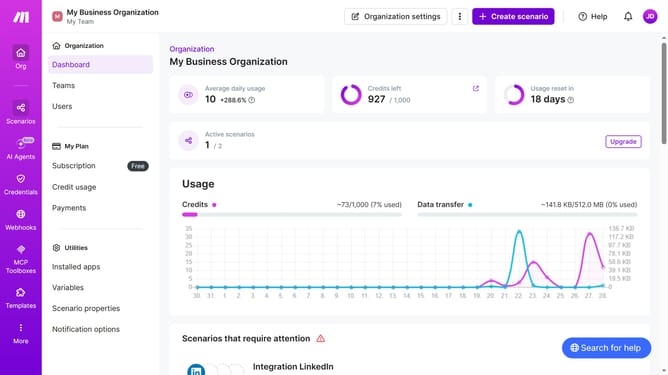
- First click on "Scenarios" in the left sidebar.
- TThen click on the OneDrive scenario
- Next, click on the "Options" button in the header menu.
- Then select "Scheduling" from the dropdown menu.
- After that, click on the "Run scenario" dropdown in the "Schedule settings" modal
- Next select "Once" from the presented options
- Finally click on the "Save" button
Why should you manage a one-time running schedule for a OneDrive scenario in Make
Make is a versatile platform designed to automate workflows efficiently across diverse applications.
Managing a one-time running schedule for a OneDrive scenario in Make provides the flexibility to execute specific tasks only when needed.
This functionality ensures an optimal use of resources by automating tasks without requiring daily or recurring scheduling.
By setting up a one-time schedule, you streamline processes, reduce manual efforts, and enhance productivity without overcomplicating the system.
Last update