How to update the days for a monthly running schedule for Dropbox scenario in Make
Here is how to update the days for a monthly running schedule for dropbox scenario in make
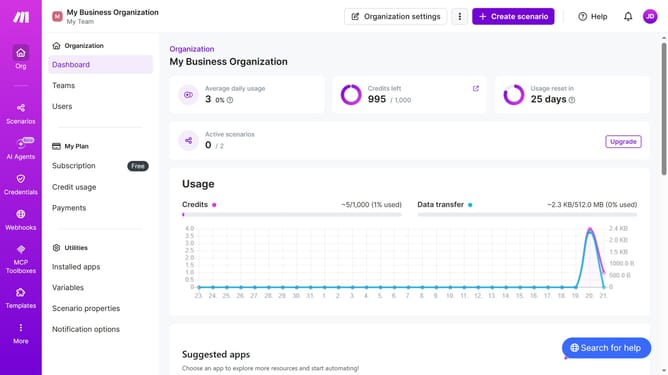
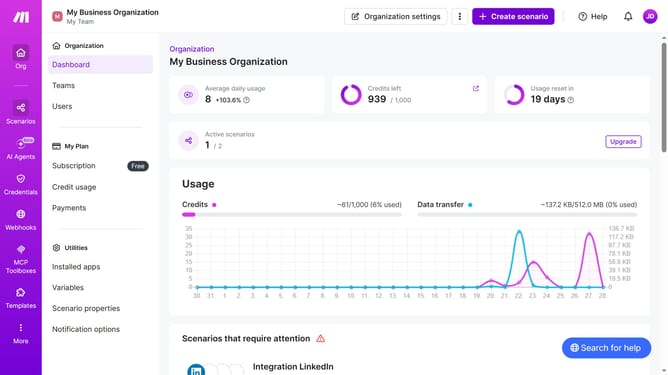
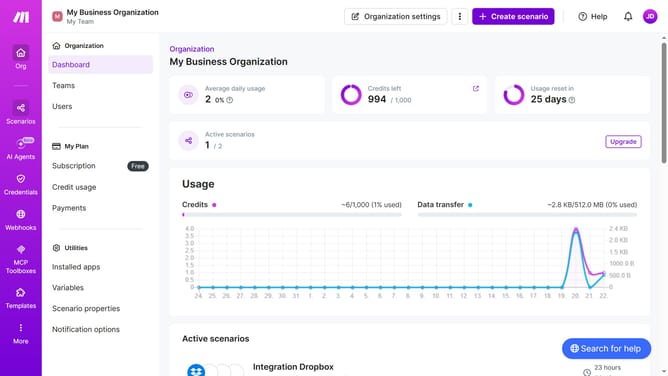
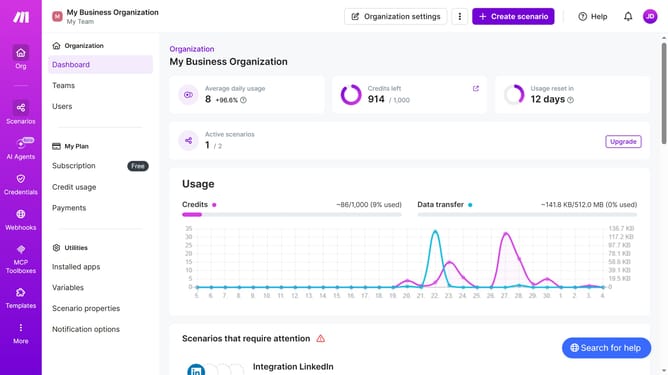
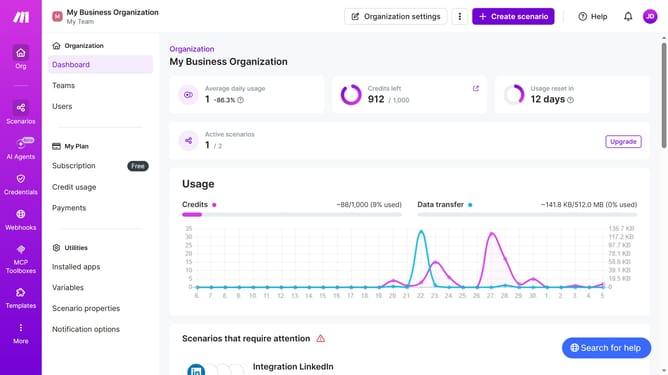
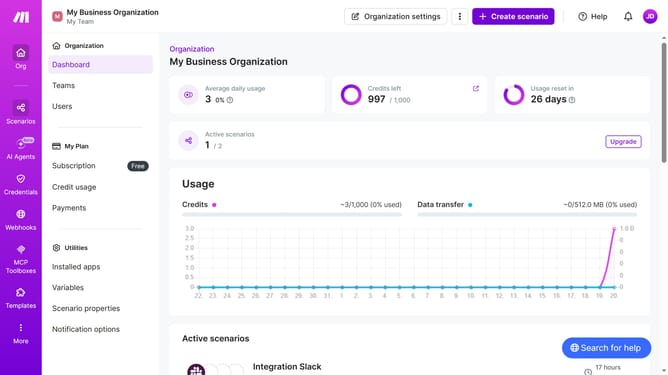
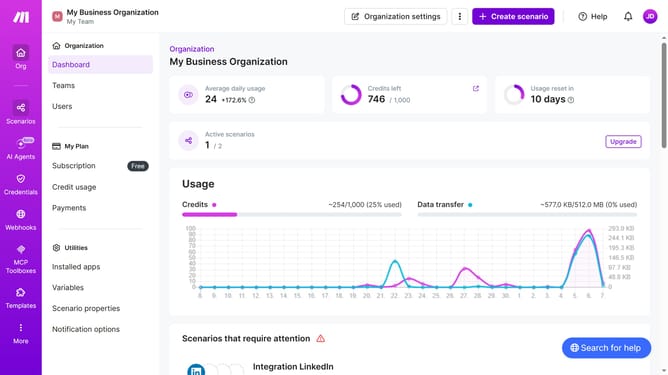
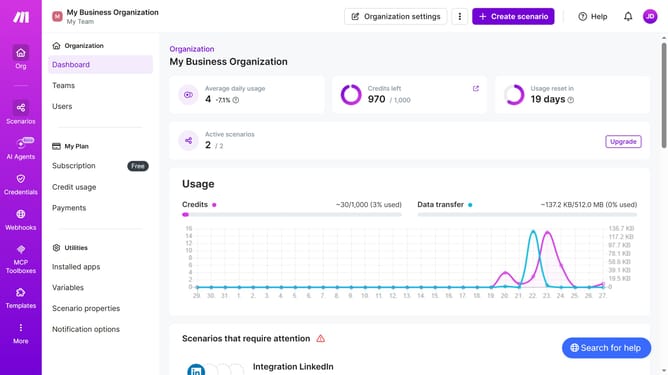
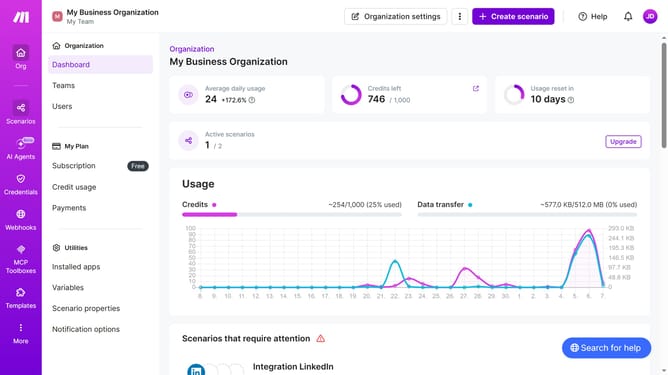
- First, click on the "Scenarios" item in the left sidebar
- Then, click on the Dropbox scenario item in the main content area
- Next, click on the "Options" button in the header
- Then, select "Scheduling" from the dropdown menu
- Next, click on the "Days" dropdown
- Then, click on the checkbox for your preferred days
- Finally, click on the "Save" button
Why should you update the days for a monthly running schedule for Dropbox scenario in Make
Make is a powerful automation platform designed to streamline workflows and enhance productivity.
One of its standout features is the ability to update the days for a monthly running schedule for Dropbox scenarios. This feature allows users to customize and automate the timing of Dropbox operations effortlessly.
By adjusting the specific days, users can ensure that tasks align perfectly with business requirements, optimizing resource usage and efficiency. Utilizing this feature not only saves time but also enhances operational accuracy and consistency.
Last update