How to manage a one-time running schedule for a Microsoft 365 Email (Outlook) scenario in Make
Here is how to manage a one-time running schedule for a microsoft 365 email (outlook) scenario in make
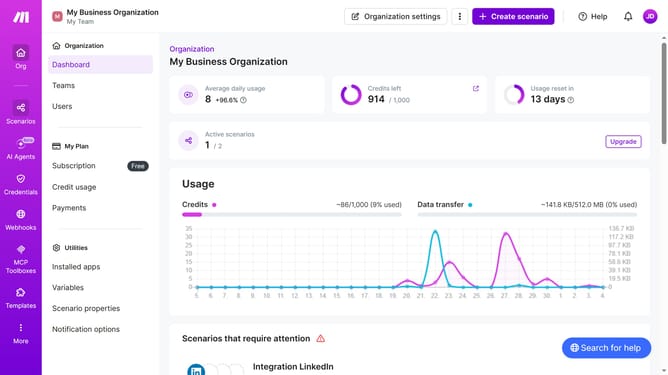
- First, click on "Scenarios" in the left sidebar
- Then, click on the Microsoft 365 Email (Outlook) scenario
- Next, click on the "Options" button to reveal a dropdown menu
- In the dropdown menu, click on "Scheduling"
- Then, click on the "Run scenario" dropdown menu
- Next, select "Once" from the list of options presented
- Finally, click on the "Save" button to apply the changes
Why should you manage a one-time running schedule for a Microsoft 365 Email (Outlook) scenario in Make
Make is a revolutionary platform designed to streamline workflows with effortless automation.
Managing a one-time running schedule for a Microsoft 365 Email scenario in Make allows users to execute tasks at precisely the right moment without manual intervention.
This feature is particularly advantageous for businesses and individuals aiming to avoid the hassle of repeated scheduling for one-time projects.
With this efficient approach, productivity spikes as focus is shifted from time management to task completion.
Last update