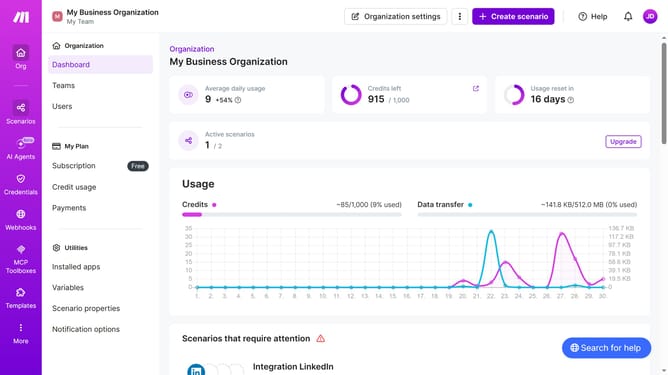
How to manage monthly running schedule of a Discord scenario in Make
Here is how to manage monthly running schedule of a discord scenario in make
- First click on "Scenarios" in the sidebar
- Then click on the Discord scenario that you want to manage
- Then click on the "Edit" button
- Then click on the "Every 15 minutes" field
- Then click on the "Run scenario" dropdown
- Then select "Monthly" from the dropdown menu
- Then click on the "Days" dropdown
- Then select the checkbox for your preferred number of days from the list of days
- Then click on the "Save" button
- Then click on the "Activate scenario" button
- Finally click on the "Save" button to save changes
Why should you manage monthly running schedule of a Discord scenario in Make
Make is an innovative automation platform allowing seamless integration of various apps and services for streamlined workflows.
Managing a monthly running schedule of a Discord scenario in Make simplifies the process of maintaining communication and tasks. This feature enables you to set up regular interactions and updates effortlessly, ensuring your community remains engaged and organized without the constant manual input.
By automating these processes, it maximizes efficiency, saves valuable time, and reduces the risk of overlooked tasks, providing peace of mind and consistent results.
Implementing this strategy in Make keeps your Discord activities synced and timely, fostering a more dynamic and responsive server environment.
Last update