How to manage weekly running schedule for a Calendly scenario in Make
Here is how to manage weekly running schedule for a calendly scenario in make
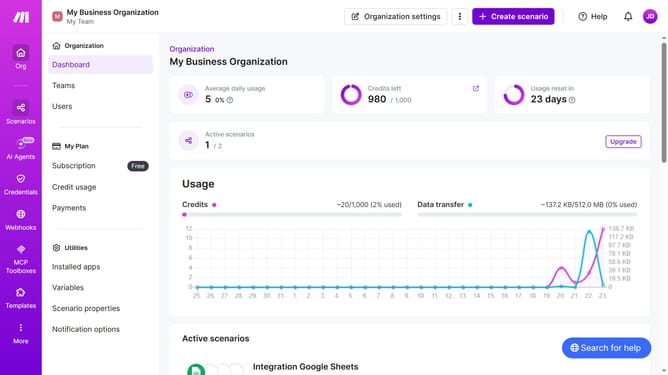
- First click on "Scenarios" in the left sidebar
- Then click on the Calendly scenario
- Next, click on the "Options" button in the header
- Then select "Scheduling" from the dropdown menu
- After that, click on the "Run scenario" dropdown
- Then click on "Weekly" in the dropdown
- Next, click on the "Days" dropdown
- Then click on the days checkbox
- Finally click on the "Save" button
Why should you manage weekly running schedule for a Calendly scenario in Make
Make is a versatile automation platform designed to streamline complex workflows effortlessly.
Managing a weekly running schedule for a Calendly scenario in Make ensures all your appointments and practice runs are perfectly coordinated. Utilizing this feature allows for seamless integration of personal commitments with professional scheduling, optimizing your time efficiently.
The benefit is clear: a balanced week of running activities and appointments without the hassle of constant manual adjustments, promoting both fitness and productivity.
Last update