How to set a start and end date for a monthly running schedule for LinkedIn scenario in Make
Here is how to set a start and end date for a monthly running schedule for linkedin scenario in make
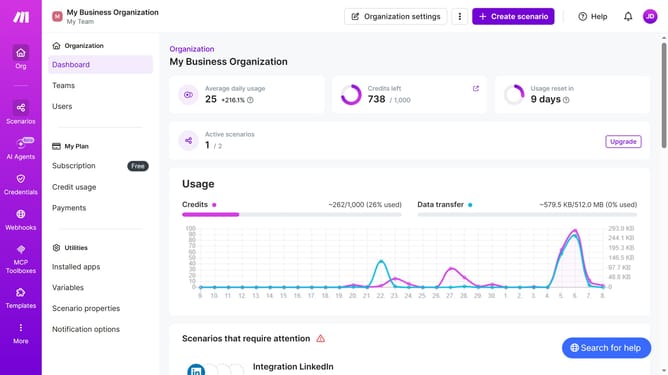
- First click on "Scenarios" button in the left sidebar
- Then click on the LinkedIn scenario
- Next click on "Options" menu
- Then select "Scheduling" option
- After that, click on the "Advanced settings" toggle
- Then click on the "Start" input field
- Next select a day of the month
- Then click on the "End" input field
- Next select a day of the month for the end date 10, Finally, click on the "Save"button
Why should you set a start and end date for a monthly running schedule for LinkedIn scenario in Make
Make is a robust automation platform designed to streamline and optimize your digital tasks effortlessly.
Setting a start and end date for a monthly running schedule for a LinkedIn scenario in Make ensures precision and consistency. This feature empowers you to automate LinkedIn interactions seamlessly, aligning with your strategy.
Using this feature, you gain enhanced control over your LinkedIn activities. It's an excellent way to maintain regular engagement without manual intervention, saving you time and increasing productivity.
Last update