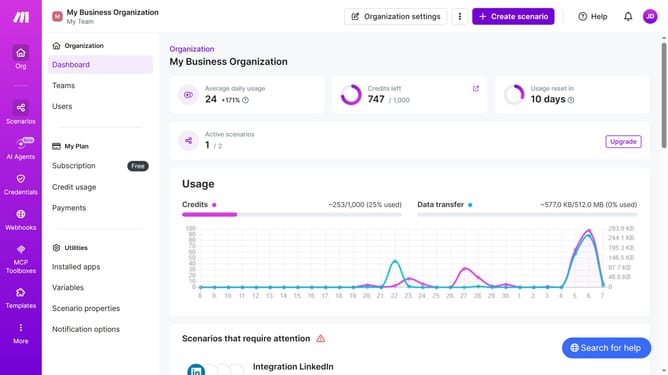
How to set a start and end date for a weekly running schedule for Shopify scenario in Make
Here is how to set a start and end date for a weekly running schedule for shopify scenario in make
- First click on the "Scenarios" item in the left sidebar
- Then click on the "Shopify" scenario in the main panel
- Then click on the "Options" button
- Then select "Scheduling" from the dropdown menu
- Then click on the "Advanced settings" toggle to enable it
- Then click on the "Start" input field to open the date picker.
- Then select a day in the calendar
- Then click on the "End" input field to open the date picker
- Then select a day in the calendar
- Finally click on the "Save" button
Why should you set a start and end date for a weekly running schedule for Shopify scenario in Make
Make is a versatile automation platform designed to streamline workflows efficiently.
Setting a start and end date for a weekly running schedule in Make specifically tailored for a Shopify scenario allows businesses to optimize their operations with precision. This feature empowers you to define the exact timeframe your tasks should initiate and conclude within a week, ensuring seamless integration with your business's unique cycle.
This scheduling capability is particularly beneficial for managing promotions, inventory updates, or customer engagement activities. It enhances control and predictability, leading to more effective resource management and improved business outcomes.
Last update