How to delete additional time for a weekday running schedule for Pinterest scenario in Make
Here is how to delete additional time for a weekday running schedule for pinterest scenario in make
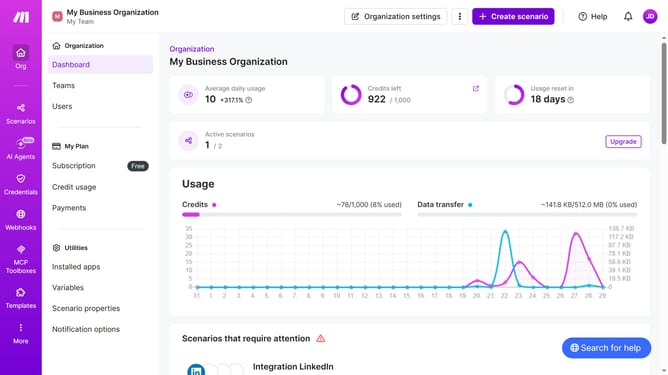
- First click on "Scenarios" in the left sidebar
- Then click on the "Pinterest" scenario to open its details
- Next, click on the "Options" dropdown menu
- Then select "Scheduling" from the options menu
- After that, click the close button next to the time you want to delete
- Finally click the "Save" button
Why should you delete additional time for a weekday running schedule for Pinterest scenario in Make
Make, a dynamic automation platform, empowers users to seamlessly streamline their digital workflows.
If you're looking to delete additional time from a weekday running schedule for a Pinterest scenario in Make, the feature allows for swift modifications, enhancing flexibility and control over your schedule. Adjusting your schedule ensures that your Pinterest posts align with optimal engagement periods, boosting visibility and effectiveness.
Taking advantage of this feature means you'll maintain a tidy schedule, focusing solely on critical time slots, which can enhance productivity and ensure your strategies remain aligned with your goals.
Last update