How to add a scenario description for Google Calendar in Make
Here is how to add a scenario description for google calendar in make
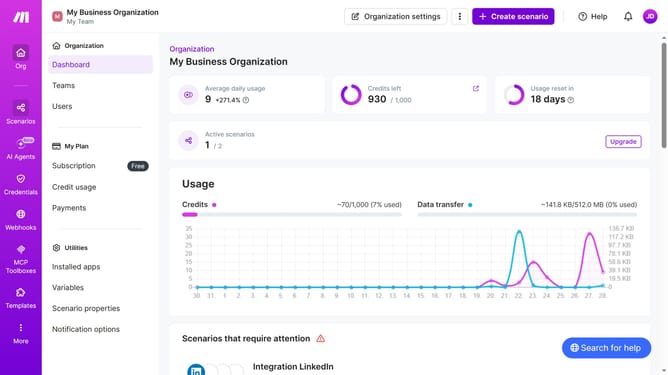
- First, click on "Scenarios" in the left sidebar
- Then, click on the "Google Calendar" scenario
- Next, click on the "Options" button in the top right action bar
- Then, click on the "Edit description" option from the dropdown menu
- Next, enter text into the "Description" input field
- Finally, click on the "Save" button
Why should you add a scenario description for Google Calendar in Make
Make is a powerful automation platform designed to connect your apps and optimize workflows seamlessly.
Adding a scenario description for Google Calendar in Make allows users to give context to their automated workflows. This feature makes it easier to manage complex sequences and collaborate with team members by providing a clear understanding of each scenario's purpose and expected outcome.
With a carefully crafted scenario description, the potential for streamlined communication and enhanced productivity is significantly increased. Users can effortlessly align their scheduling needs with business goals, resulting in efficient processes and improved time management.
Last update